A Public Alert is a way to notify agency-specific users of important information about a client within the client-level Alerts tab. This could include requests to locate a client for services or housing opportunities, or information regarding program eligibility issues.
Please note that this is a feature that can be turned on for any agency. Any agency that uses this feature should make sure to set any alerts made to private so that only members of said agency can view them.
To view alerts about a client, first navigate to their main profile screen.
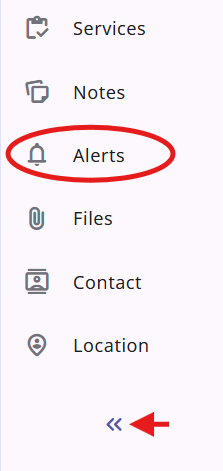
On the left side of the client profile is the client-level navigational tabs. From this list, select the Alerts tab, denoted by an icon of a bell. If you are unable to locate which of the choices is the alerts tab, clicking on the double arrow at the bottom of the list will show the name of each tab.
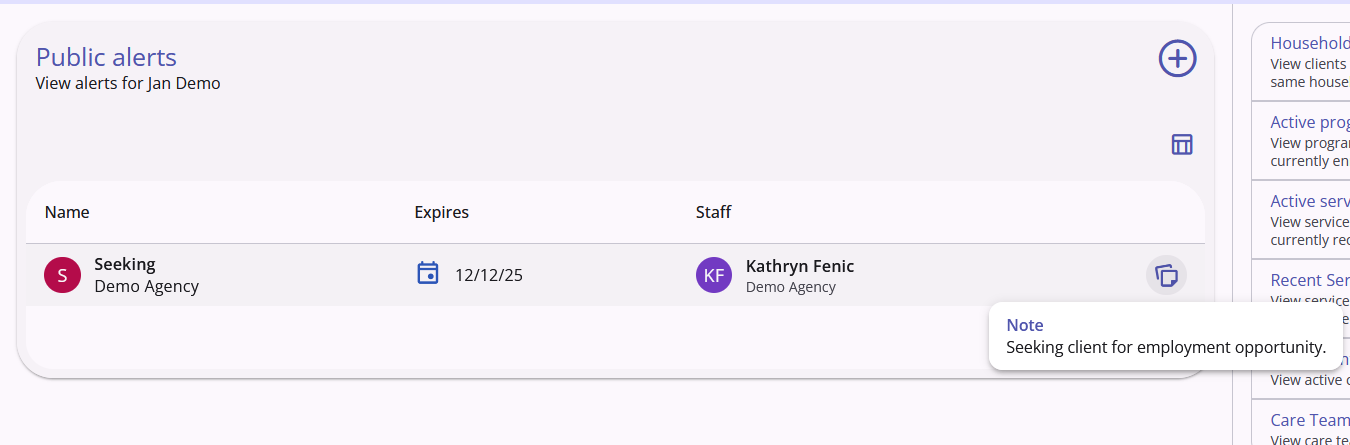
The public alerts page will show a list of all active alerts created for the chosen client. By default, the list will show the title of the alert, its expiration date, and the staff member responsible for the creation of the alert. Clicking on an alert from the list, or mousing over the sticky note icon on the right of an alert, will show the content of the alert.
Additional data fields can be included in the list by selecting the "Show/Hide Fields" tool at the top-right of the list.
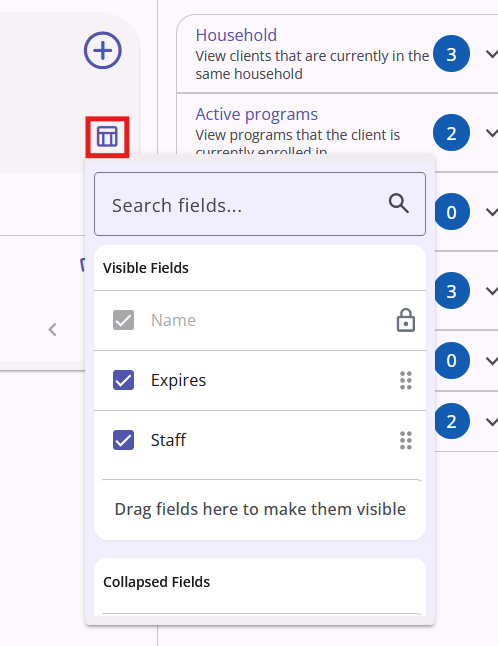 For more information on this tool, please see our article: New UI: Recently Searched Clients & Fields Customization.
To create a new alert, simply click on the + icon in the top right. This will open an overlay for you to input the required information.
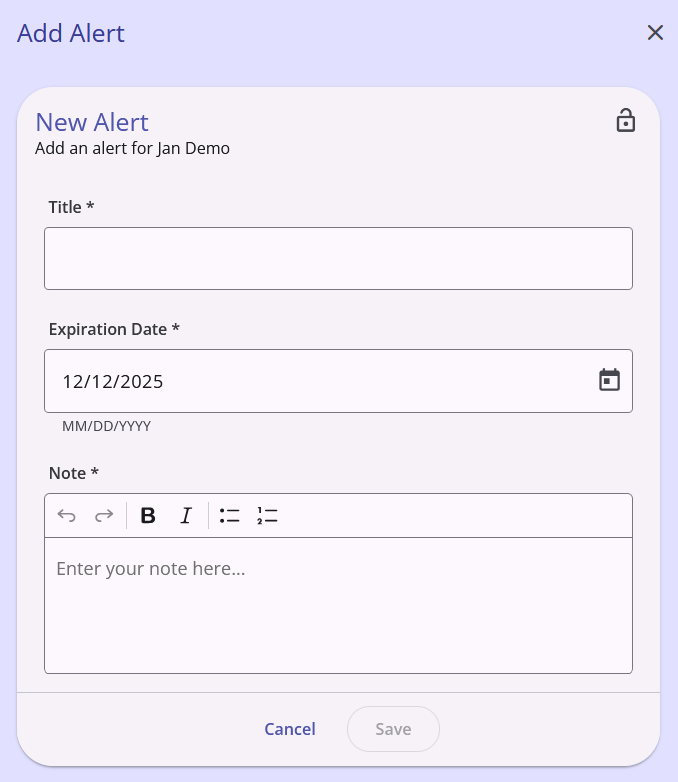
Title: The title of the note, like the subject of an email.
Expiration Date: The date when the note will stop being visible. The default is the date the note is made, meaning the note will expire at the end of the day.
Note: Any information relevant to the alert.
After filling out the information, make sure to click on the save button at the bottom of the overlay to complete the alert. The alert will now be visible in the client's alert list until the chosen expiration date.
For more information, click the link to see the official Bitfocus article on public alerts in the new UI.
Contact Us
If you need help, or wish to offer suggestions or feedback, please contact the Cincinnati/Hamilton County HMIS support team at HMISsupport@end-homelessness.org or by calling 513-263-2790 9:00a.m. - 3:00p.m. Monday-Friday (excluding holidays).
When contacting HMIS Support about a particular client, please do not send protected personal information (PPI) such as full name, social security number, or any other information used to determine a person's identity through email. Instead, please send the Clarity Unique Identifier found on the client's Clarity Profile page. You can use the messaging system in Clarity if you need to send personally-identifying information.