
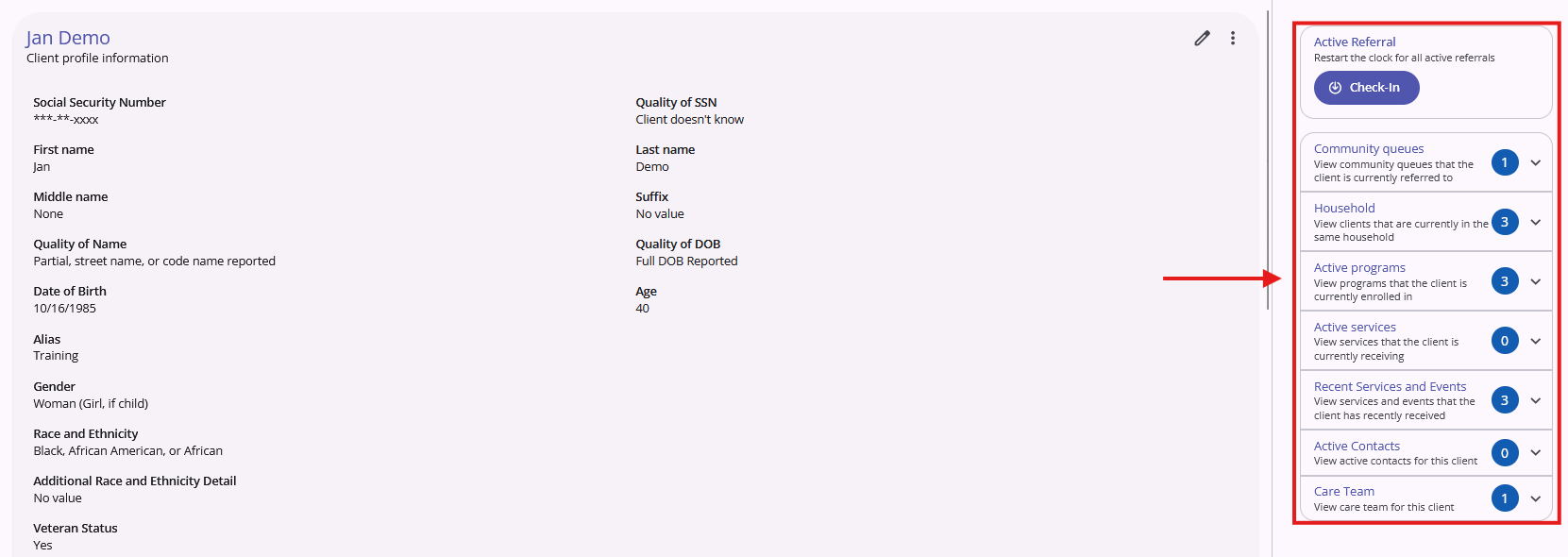
All client profiles within Clarity have a column of cards on the right side of the screen. These are known as Client Details cards and are useful for both at-a-glace information gathering and as a navigational tool. Each card has a number included showing how many applicable items there are in each category. Each card also includes a down arrow on the right, which can be clicked on to expand the card for additional information. The table below provides a brief explanation of each card and the information given therein. For more information on these cards, please see the official Bitfocus Client Record Overview support article.
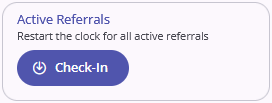 | Active Referrals: This card allows case managers with clients with active referrals to reset the Last Activity date for all of the client's active referrals with a single click of the Check-In button. *This card will only be visible if both the user has referral access and if the client being viewed has active referrals. |
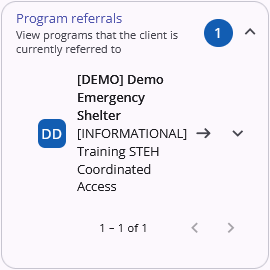 | Program referrals: Shows the number of active program referrals a client has. Expanding the card shows each program the client is being referred to and allows users to go directly to an active program referral. Clicking on the down arrow next to a referral shows the date the referral was made. Clicking on the right arrow next to a program referral will take users directly to that referral. *This card is only visible if the user has referral access and if the client being viewed has at least one active program enrollment. |
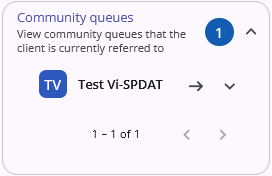 | Community queues: Shows the number of Community Queues a client has an active referral to. Expanding the card shows which queues the referrals are for. Clicking on the down arrow next to a Community Queue shows the date the referral was made. Clicking on the right arrow next to a queue name allows users to go directly to that CQ referral. |
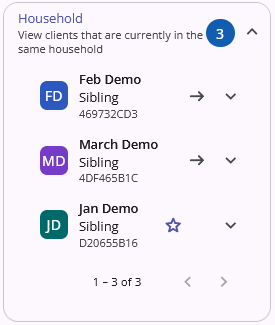 | Household: Shows the number of household members, client included, there are in a client's global household. Expanding the card shows the names, relationships, and Clarity UID for every person in the household. A star icon denotes the HoH. Clicking the down arrow next to a household member's name shows the date they joined the household. Clicking the right arrow next to a household member's name takes users directly to that member's Clarity profile. |
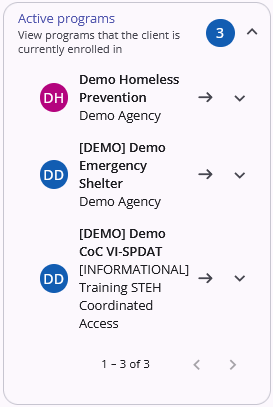 | Active programs: Shows the number of active program enrollments a client has. Expanding the card lists the names of all programs with an active enrollment. Clicking the down arrow next to a program name shows the agency the program is associated with. Clicking on the right arrow next to a program name takes users directly to the client's enrollment screen for that program. |
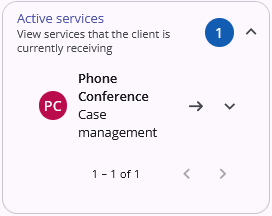 | Active services: Shows the number of services the client is actively receiving. A service is considered active if the current date matches the date on a given service. Expanding the card shows a list of the service names and the given service items. Clicking on the right arrow next to a service name takes users directly to that service record. |
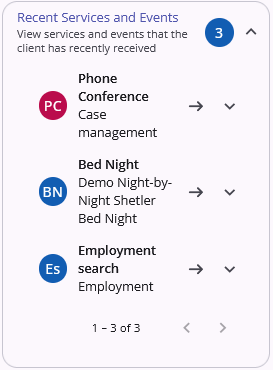 | Recent Services and Events: Shows the number of services and events that the client has recently received. Expanding the card shows a list of service names and the given service items. Clicking on the right arrow next to a service name takes users directly to that service record. |
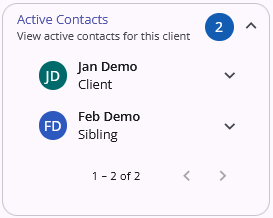 | Active Contacts: Shows the number of active contacts on file for a client. Expanding the card shows the name associated with, and contact type of, each contact on file. Clicking on the down arrow next to a contact shows the phone and email address of the given contact. |
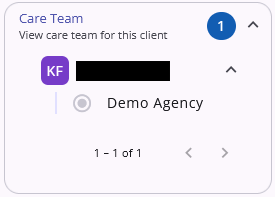 | Care Team: Shows the number of staff members currently assigned to the client. Expanding the card shows a list of the names for each member of the care team. Clicking on the down arrow next to a staff member shows the agency they are associated with. |
Contact Us
If you need help, or wish to offer suggestions or feedback, please contact the Cincinnati/Hamilton County HMIS support team at HMISsupport@end-homelessness.org or by calling 513-263-2790 9:00a.m. - 3:00p.m. Monday-Friday (excluding holidays).
When contacting HMIS Support about a particular client, please do not send protected personal information (PII) such as full name, social security number, or any other information used to determine a person's identity through email. Instead, please send the Clarity Unique Identifier found on the client's Clarity Profile page. You can use the messaging system in Clarity if you need to send personally-identifying information.