This authentication system goes live July 23, 2026! Please see this article for the MFA system that goes live July 23: Using Multi-Factor Authentication : |
Introduction
Multi-Factor Authentication (MFA) is required for all Clarity HMIS users. MFA is a method of preventing information theft by confirming the identification of a Clarity system user.
If you need help, please contact HMIS support team at HMISsupport@end-homelessness.org or by calling 513-263-2790.
Logging in With MFA
When you open Clarity, you'll see the login screen:
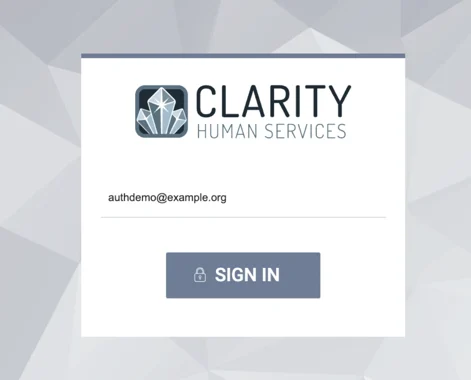
Enter your email address.
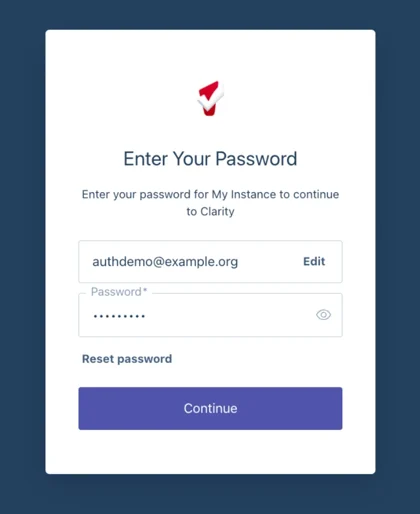
You will then be prompted to log into Auth0 (the new MFA system) set up screen the first time you log in:
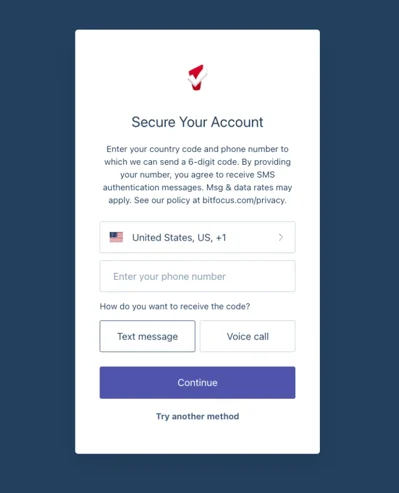
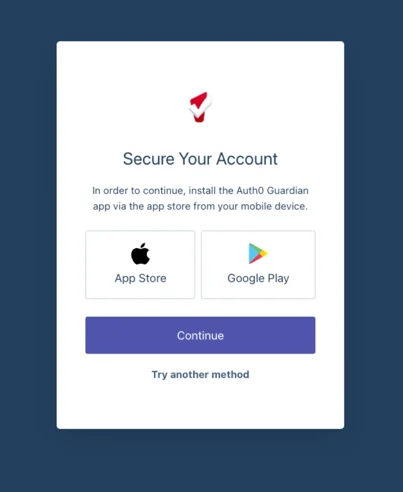
You will then be prompted to select an authentication method:
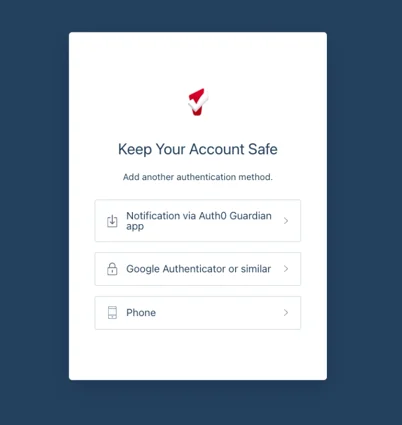
Choose how to authenticate your identity:
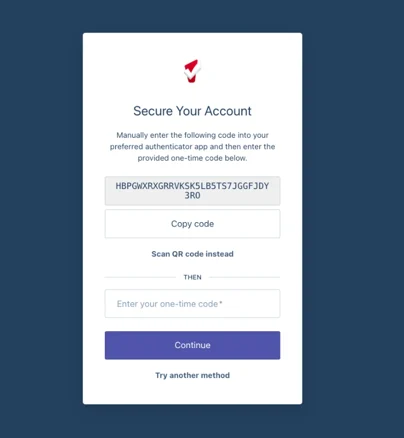
| Phone Authentication | Auth0 Guardian App | Other Authentication App* |
 |  |  |
Note: To use an authenticator app, you will need a smart device or tablet. If you choose to get your verification code via email it will be sent to the email address associated with your Clarity account.
*Other Authentication Apps for Mobile Devices
There are several authentication applications available for smart devices. We recommend installing the following apps for these top mobile platforms: Google Authenticator for Android and iOS and Microsoft Authenticator for Windows.
Using an Authenticator App
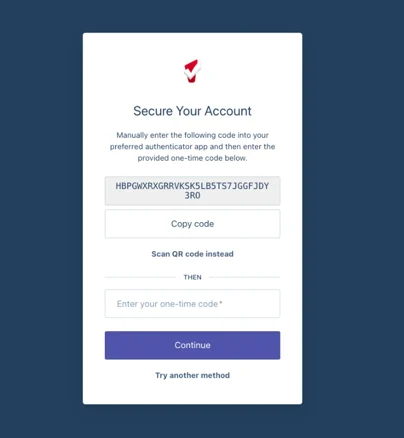
If you select the "other authentication option" and open the app on your smart device, a dialog box will open prompting you to scan a QR code or enter a code (see below). Follow the instructions from your authenticator app to scan the QR code. Once the QR code is scanned, the app will generate a 6-digit code. Enter the code in the space provided and click CONTINUE.
Subsequent Logins with 2FA Enabled
Once the authentication method is set up, users will be prompted the next time they need to re-authenticate when they log in:
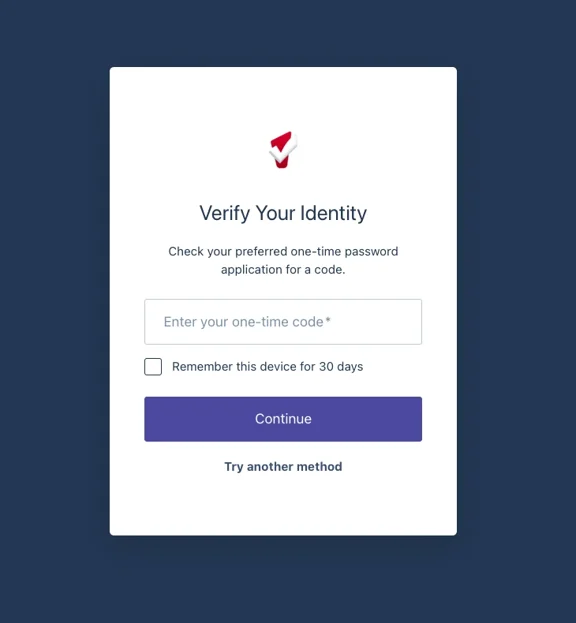
Enter the code as before to complete the login process from which ever method you chose.
Remember this device for 30 days (Trusted Device)
You have the option of clicking the box next to "Remember this device for 30 days" when verifying your login code. If you checked the checkbox, you will be prompted to enter a verification code after 30 days rather than at each log in.
It is our CoC's policy, when data is entered from a secure location within a participating agency, the user may set their browser to TRUSTED DEVICE. However, if you access Clarity in a public location (anyone working outside the office--for example, at a client's home, a library or coffee shop, or working with a client on the street) you should not click the TRUSTED DEVICE checkbox and should have 2FA enabled for each Clarity log in. You should never access Clarity from a public computer (for example, a computer provided at a library or hotel business center).
Note: If you check the TRUSTED DEVICE checkbox in one browser (IE, Firefox, Chrome, or Safari) you will still be prompted to go through the entire process if you use a different browser to log into Clarity, even if you are on the same workstation.
Contact
If you need help, or wish to offer suggestions or feedback, please contact the Cincinnati/Hamilton County HMIS support team at HMISsupport@end-homelessness.org or by calling 513-263-2790 9:00 a.m. - 3:00 p.m. Monday-Friday (excluding holidays).
When contacting HMIS Support about a particular client, please do not send sensitive personally identifiable information (Sensitive PII) through email, such as full name, social security number, or any other information used to determine a person's identification. Instead, please send the Clarity Unique Identifier found on the client's Clarity Profile page. You can use the messaging system in Clarity if you need to send sensitive personally identifying information.
LB 6/25