
Managing a Global Household
This article walks through the process of adding a new household member to an existing global household. For steps on how to get to or create a global household in the new UI, please see this article.
All members of a family, group, or household must have individual client profiles (including children) in Clarity before being added to a Global Household. A Global Household must be created in order to enroll the group into a program together. Newly created client profiles are not automatically part of a family or household. So, for example, if a client in a global household has a child, that child will need its own profile within Clarity, and will need to be added to the existing global household alongside its parent(s).
First, navigate to the desired Head of Household's profile, and click into the Household tab in the client-level navigation tabs on the left.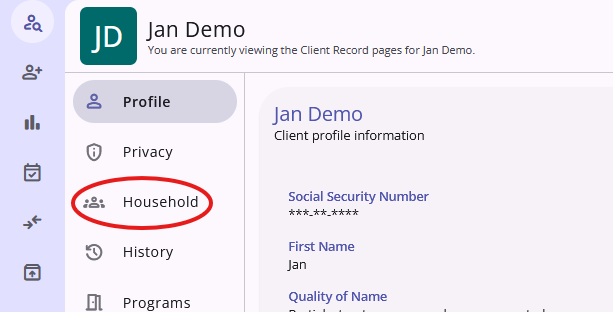
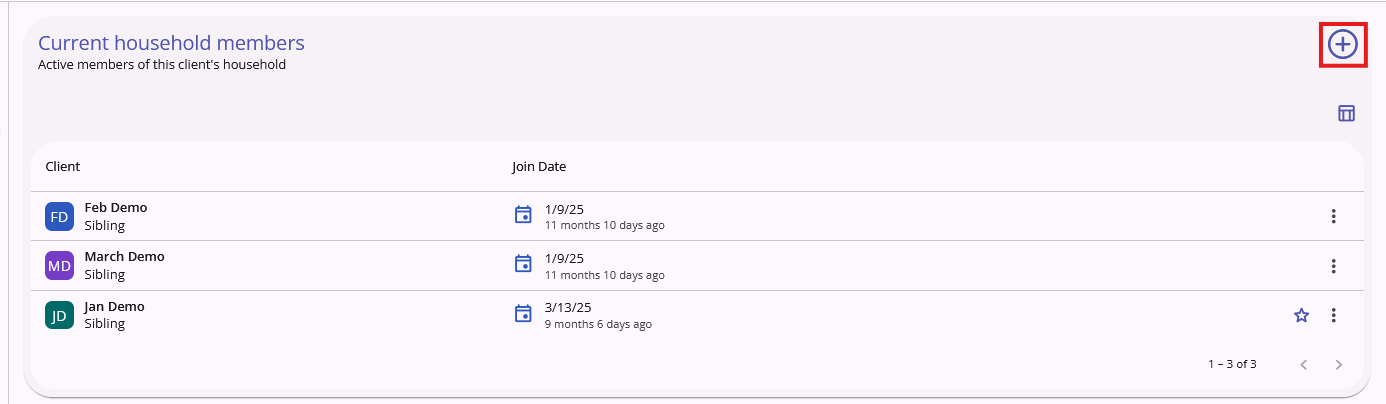
The Household tab will show you the members of the global household, along side their relation and join date. To add a client to an existing household, simply click on the + icon, highlighted in the screenshot below. Clarity will open an overlay to walk you through the steps.
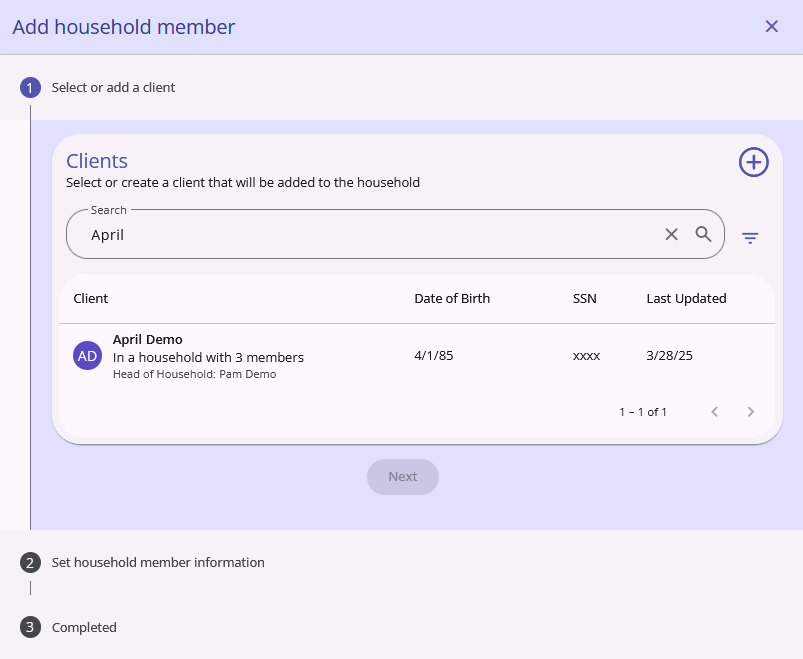
You will search for the desired client using the provided search bar, as well as fill in the household information of the new member.
If this is a situation where a client is exiting one household to join another, you are able to complete both of those tasks within the same overlay window from either household. If the client you are attempting to add to a Global Household is already a member of a different one, there will be a new required box in the overlay titled "Join Type" with a two option dropdown:
- Active client X will leave and join Y's household
- Transfer Y from their existing household to X's household
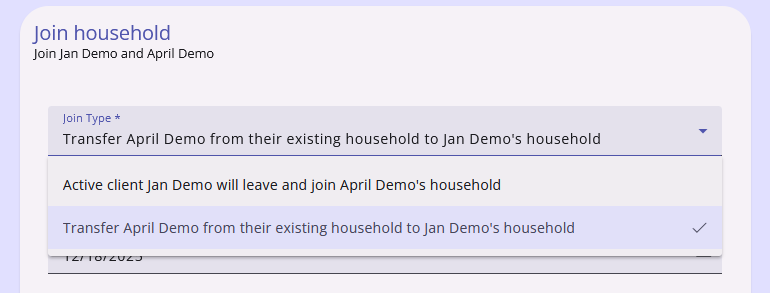 X refers to the viewed member of the selected household
Y refers to the searched client
Read these options carefully and select the correct one for the situation; if the exiting client is the HoH, you will have to set a new one. You will then also need to set the exit date of the household the client is leaving.
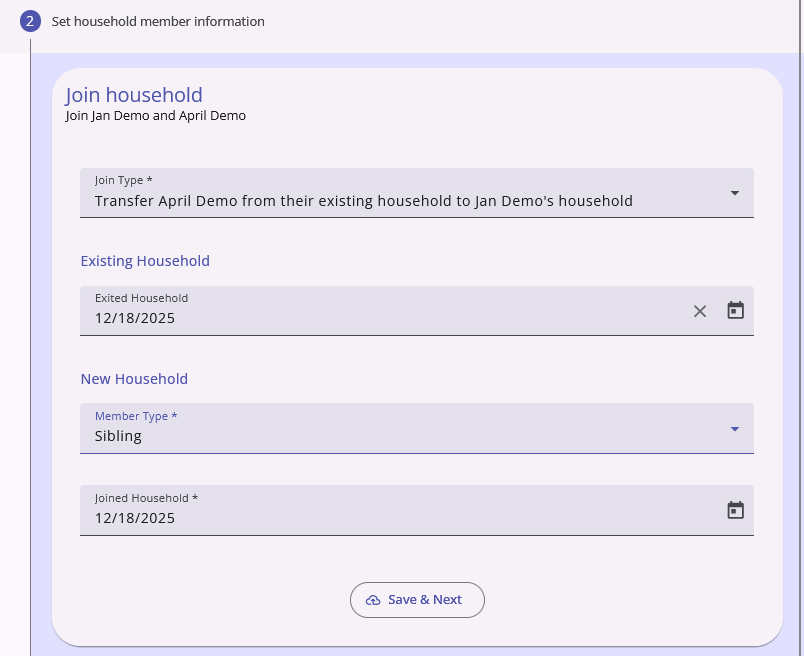
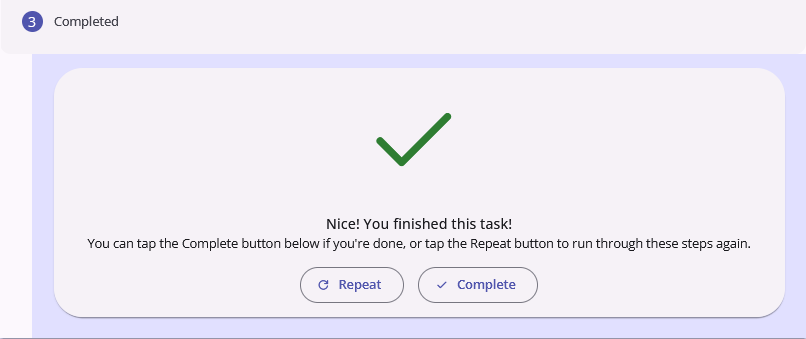
Click Save & Next at the bottom of the card, and then select Complete on the following card to finish the process.
Contact Us
If you need help, or wish to offer suggestions or feedback, please contact the Cincinnati/Hamilton County HMIS support team at HMISsupport@end-homelessness.org or by calling 513-263-2790 9:00a.m. - 3:00p.m. Monday-Friday (excluding holidays).
When contacting HMIS Support about a particular client, please do not send protected personal information (PPI) such as full name, social security number, or any other information used to determine a person's identity through email. Instead, please send the Clarity Unique Identifier found on the client's Clarity Profile page. You can use the messaging system in Clarity if you need to send personally-identifying information.