
| This article discusses the creation and management of Global Households within the new Clarity User Interface. For information regarding Global Household management in the current UI, please check out these articles: Managing a Global Household Add a New Client to an Existing Global Household Please note that this user interface is still in beta and is continuously being updated and revised. Please contact HMISsupport@end-homelessness.org if you have any questions or believe something in this article to be outdated. |
HUD defines a household as a group of persons who either currently live together in one dwelling unit or would live together in one dwelling unit were they able to maintain suitable housing accommodations. Members of a group do not have to be related to be connected.
Clarity Global Households allows users to document and track household members even if they are not enrolled in a program together. However, a group or household must be connected at the global level before they can be enrolled in a project together. A Global household can be modified or edited at any time. Editing a global household relationship will not impact enrollments that have already been completed.
To create a Global Household in the new user interface, first navigate to the profile page of the client you want to make the HoH (Head of Household).
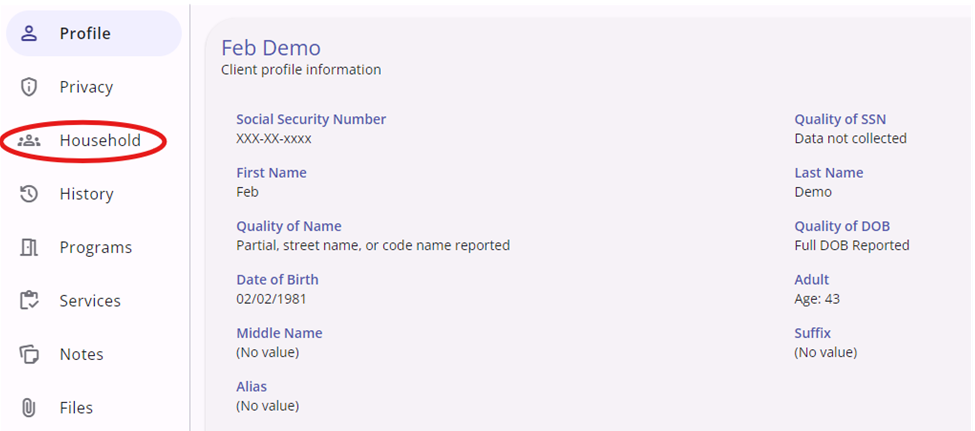
In the client-level navigation options list on the left side of the screen, click on the Household button, denoted by the icon of a group of people. This will take you to the Household screen, which will show you the current members of a Global Household, as well as previous members of the Household, and other Households the specific client you are viewing has been part of in the past.
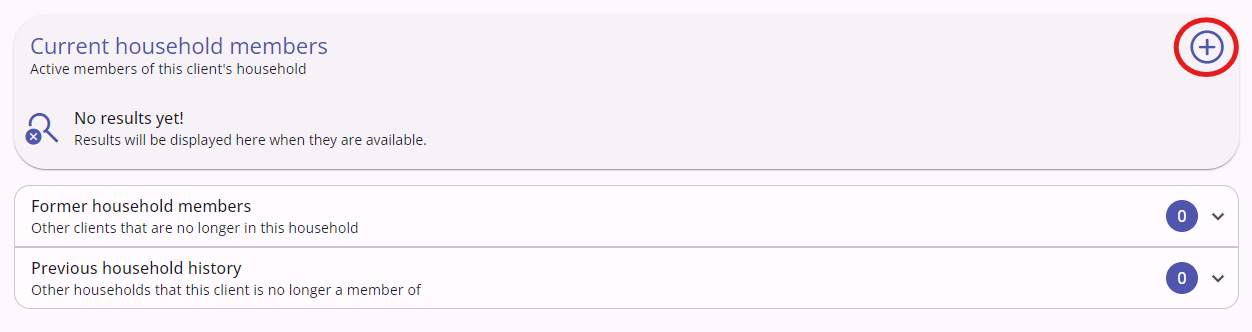
To add new member and create a Global Household, click on the + icon in the upper right. This will open an overlay menu with a three-step process to successfully add a client to the Household.
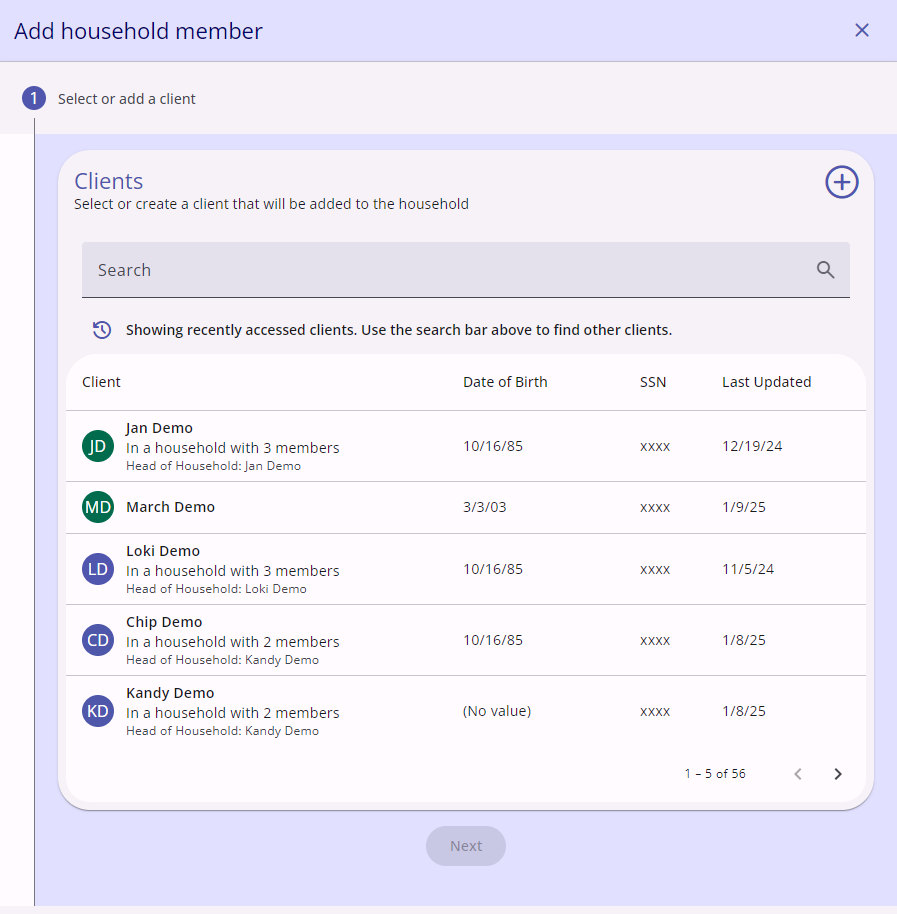
The first step is to select or add the client. This screen shows the standard search bar function in Clarity, as well as the five most recently viewed client profiles for easier selection. Note that if the client you wish to add is not already in Clarity, you can click the + icon in the upper right and you will be able to fill out a client entry form. Click on the client you wish to add to the Household and click Next.
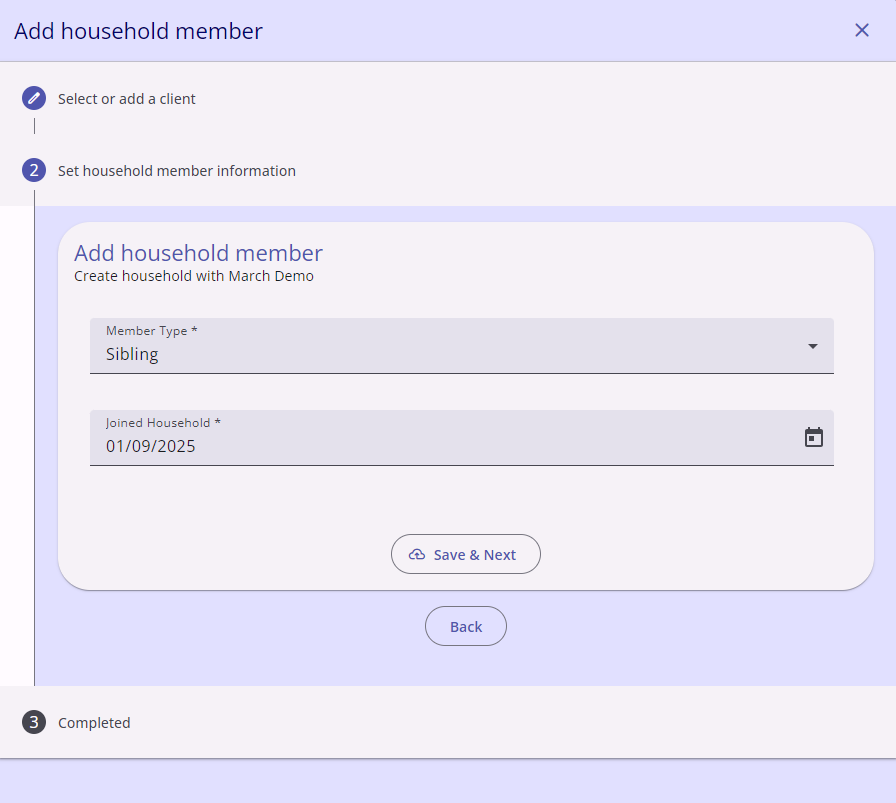
The second step is to fill out the household member information. You will be asked to choose this client's relation to your chosen HoH. Click on "Member Type" box to open the drop-down menu with choices such as spouse, sibling, roommate, etc. You will also fill out the date for when this client joined the Household. The "Joined Household" box will automatically fill in the current day. Click Save & Next.
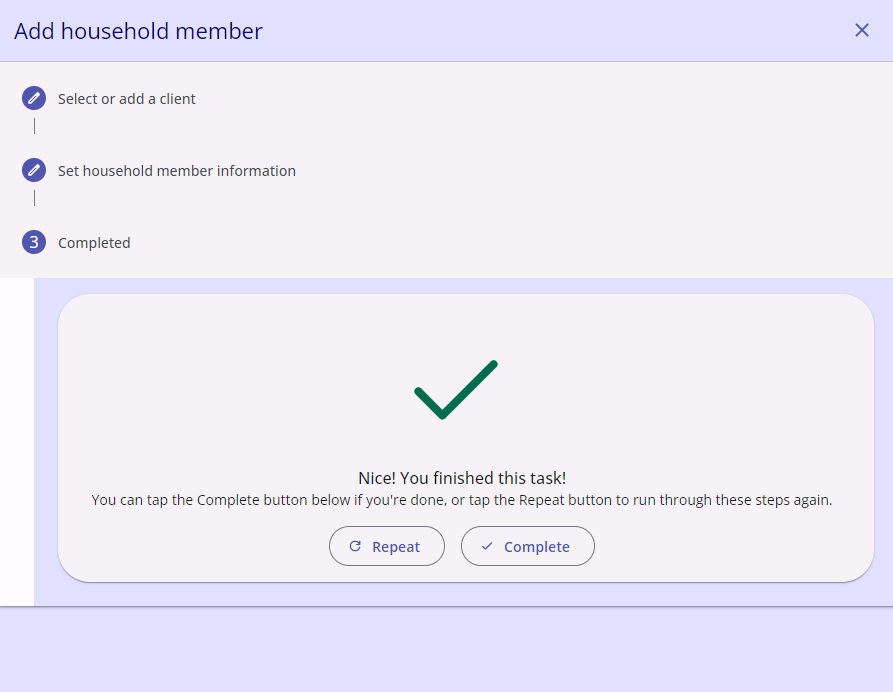
The third and final step in the process is simply confirming that the client was successfully added to the Household. If you are only adding one client to a Household, click Complete to close the overlay menu. If there are other additions to the Household needed, click the Repeat button to redo the preceding steps again with another client. This can be done as many times as necessary. Once you have added all the desired clients, click Complete.
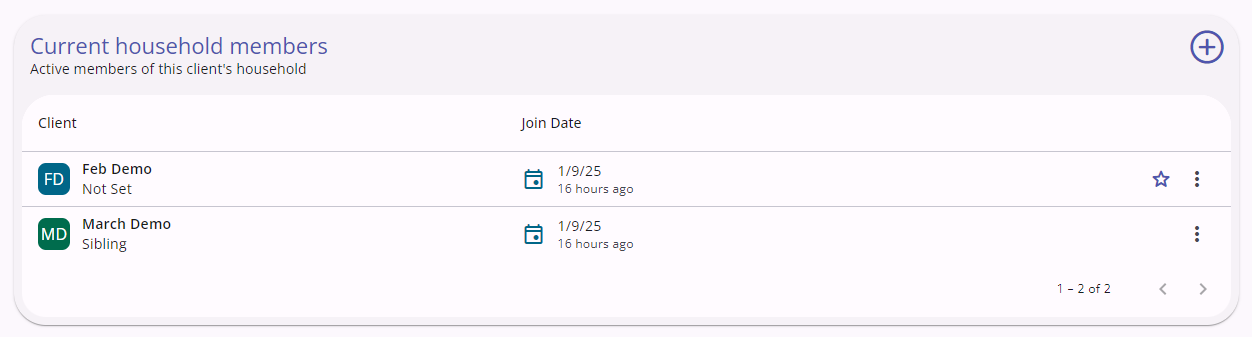
Once the overlay is closed, you will see the current members of the Household you created under "Current Household Members," with the HoH having a star icon on the right side of their box, denoting their status as such. Clicking on a client under this heading will open another overlay showing their Household information.
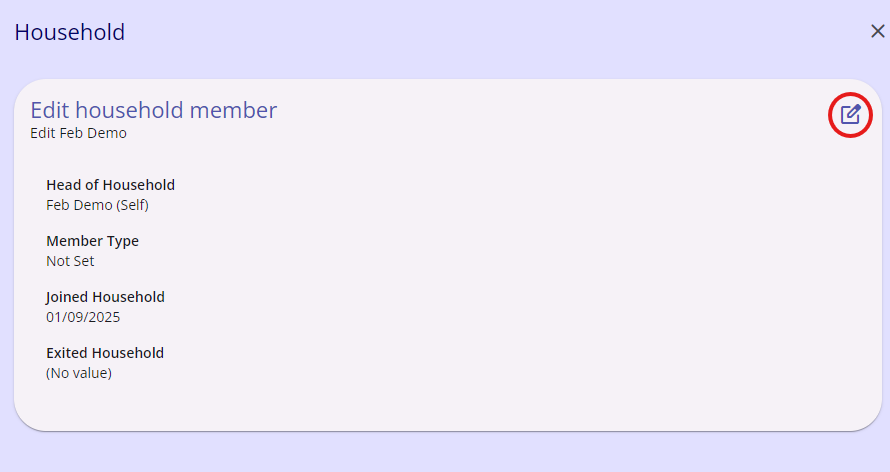
This shows who the HoH is in their Household, their member type (spouse, sibling, roommate, etc.), when they joined the Household, as well as when they exited the Household if they have. If the Household member you are viewing is a current member, the "Exited Household" header will say "(No value.)" To edit these values or to set an exit date, click on the pen and paper icon in the upper right.
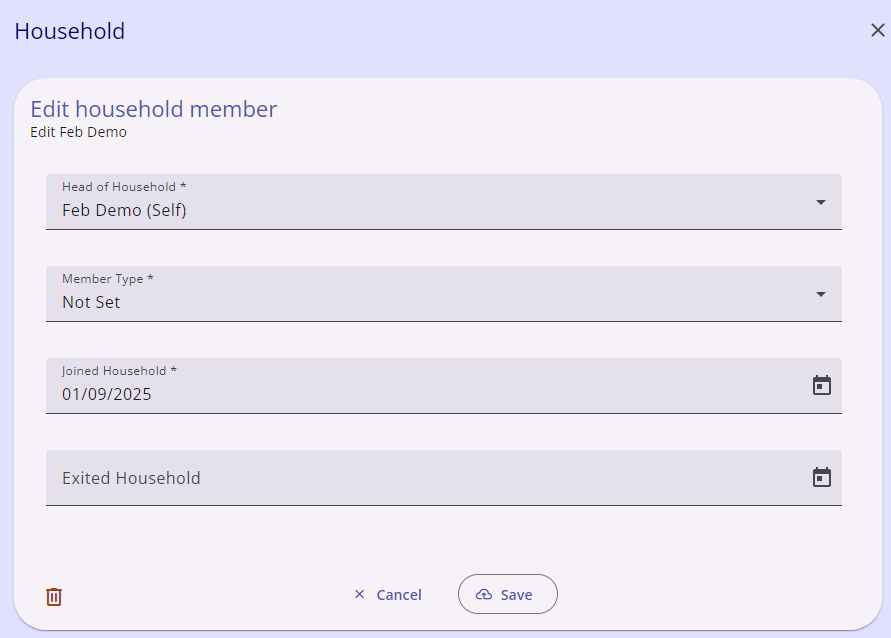
Now you are able to change the HoH if needed, change the specific client's member type, edit the joined date, and set an exit date. Once you have changed or added the desired information, click the Save button at the bottom to close the overlay.
For more information, click the link to see the Bitfocus article on creating and managing a Global Household in the new interface.
Contact Us
If you need help, or wish to offer suggestions or feedback, please contact the Cincinnati/Hamilton County HMIS support team at HMISsupport@end-homelessness.org or by calling 513-263-2790 9:00a.m. - 3:00p.m. Monday-Friday (excluding holidays).
When contacting HMIS Support about a particular client, please do not send protected personal information (PPI) such as full name, social security number, or any other information used to determine a person's identity through email. Instead, please send the Clarity Unique Identifier found on the client's Clarity Profile page. You can use the messaging system in Clarity if you need to send personally-identifying information.