
| Please note that this user interface is still in beta and is continuously being updated and revised. Please contact HMISsupport@end-homelessness.org if you have any questions or believe something in this article to be outdated. |
Within Clarity, relevant files can be uploaded either to the client-level, or into a specific enrollment in the program-level.
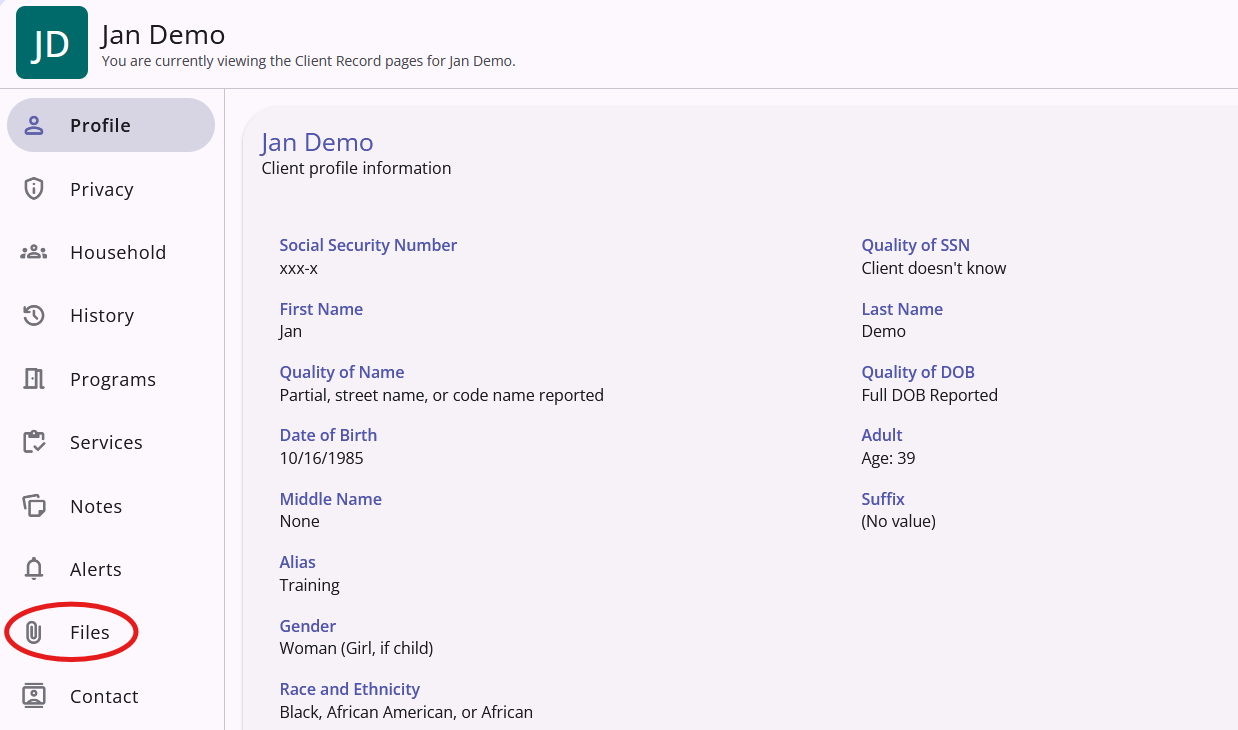
To upload files to the client-level, first navigate to the profile of the desired client. Then, click on the Files tab denoted by a paperclip icon.
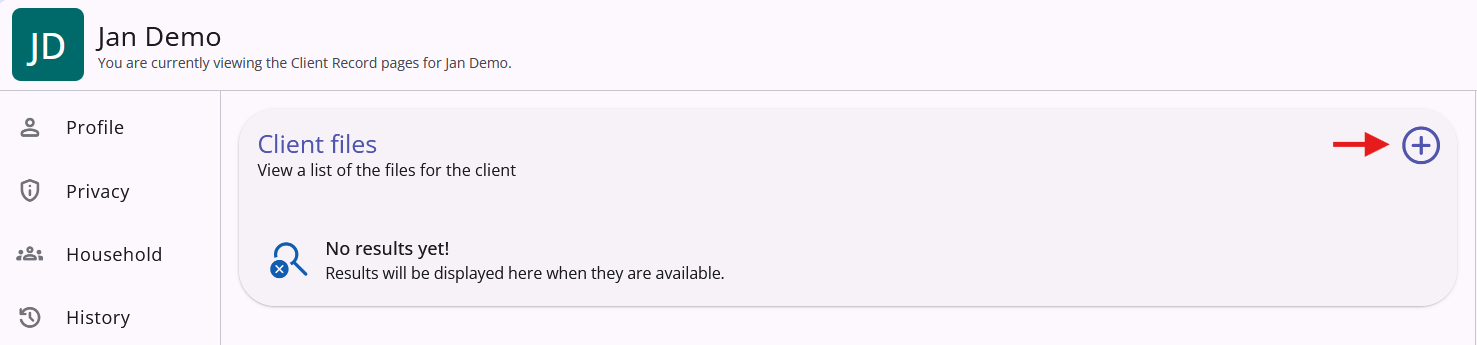
Select the + icon in the upper right.
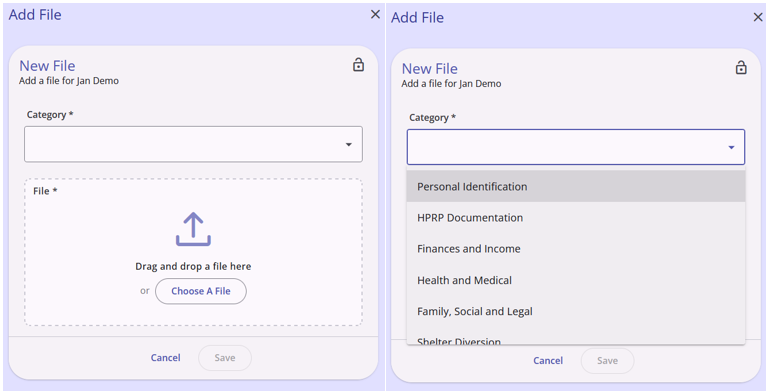
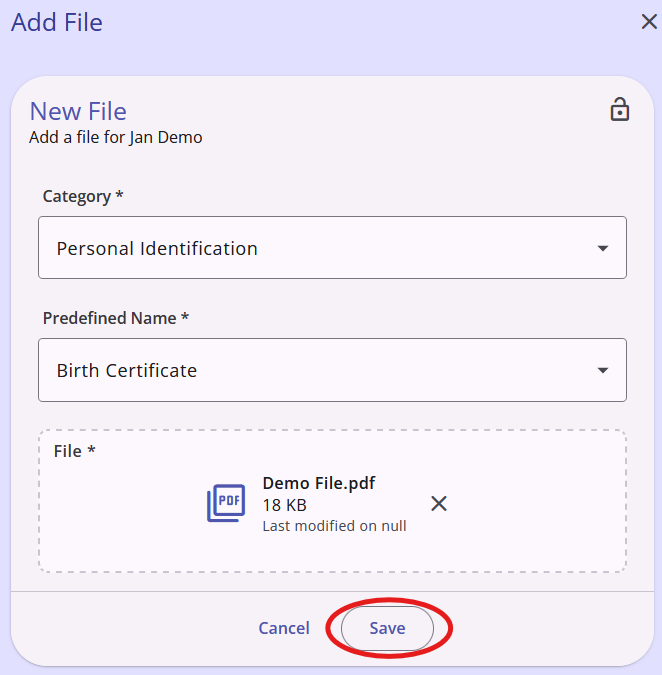
This will open a small overlay asking you to categorize the file you are uploading.
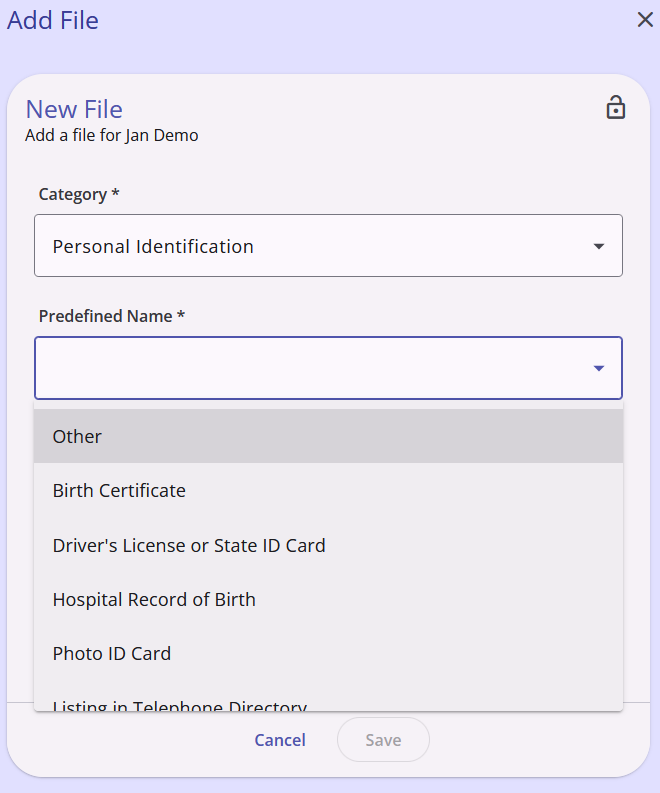
After selecting the category, the system will also ask you to further specify what the "predefined name" of the file is. Meaning which kind of document from within that category you are uploading.
After properly classifying the file you are about to upload, you will click the Choose A File button to open your file explorer.
Alternatively, you may drag and drop the chosen file into the designated area.
Once the proper file has been selected, click Save.
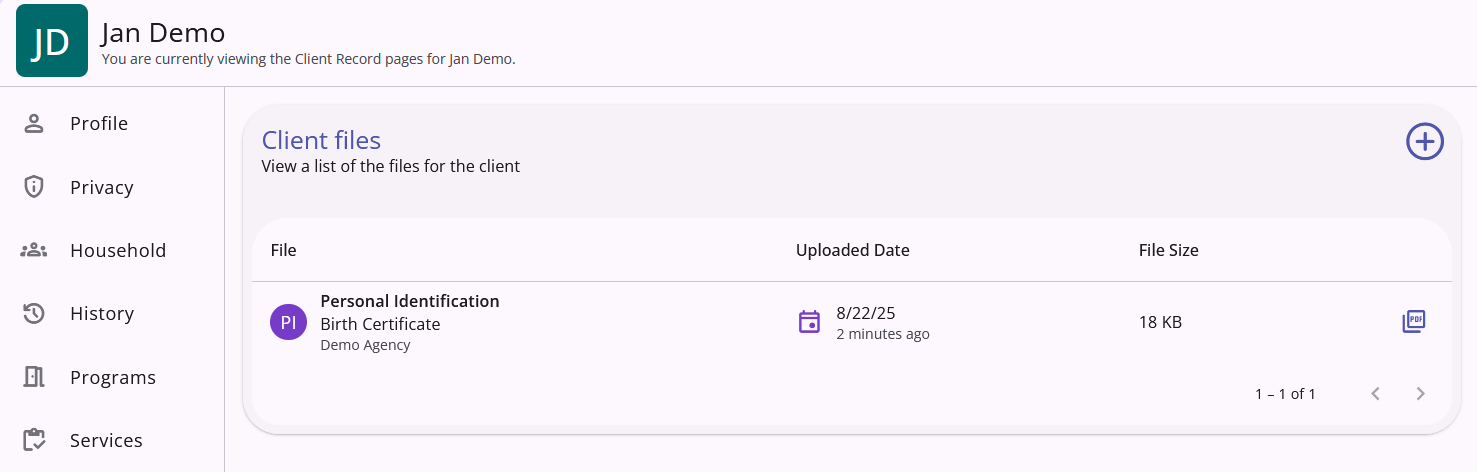
The file will now be visible in the client's file list.
Contact Us
If you need help, or wish to offer suggestions or feedback, please contact the Cincinnati/Hamilton County HMIS support team at HMISsupport@end-homelessness.org or by calling 513-263-2790 9:00a.m. - 3:00p.m. Monday-Friday (excluding holidays).
When contacting HMIS Support about a particular client, please do not send protected personal information (PPI) such as full name, social security number, or any other information used to determine a person's identity through email. Instead, please send the Clarity Unique Identifier found on the client's Clarity Profile page. You can use the messaging system in Clarity if you need to send personally-identifying information.