Client Privacy Basics
Clarity provides several layers of privacy settings to ensure that client requested data can be set to private. Data that is set to private is available to users outside of the agency that entered it. Data that is public can be viewed by any HMIS user but can only be edited by a user at the agency that entered the data.
Sharing data within HMIS has several advantages outlined in the HMIS Privacy Notice and Participant Consent Form, including reducing stress for clients who will not need to repeat their stories with every provider. With that said, the Cincinnati/Hamilton County CoC takes client privacy very seriously, so it is vital to understand your role as an HMIS user in maintaining client privacy:
- Never share your HMIS username or password.
- Only access client records for clients you are working with or have a specific business purpose to do so.
- Make sure you understand the HMIS Privacy Notice and Client Consent Form, and the HMIS User Agreement and Code of Ethics.
- Take care not to share client data by mistake; log out of Clarity when not in use, lock your screen if it is visible to others, and never discuss clients using Protected Personal Information (PPI) if you can be overheard by others not authorized to have the information.
- Understand why, when, and how to set client data to private in Clarity.
When to Set Client Data to Private
Clarity data must be set to private under these circumstances:
- The client does not consent to share information after reviewing the HMIS Privacy Notice and Client Consent Form.
- The client requests that a specific data point (note, service, referral, event, assessment, etc.) be set to private and not shared.
- Any note, assessment, service, referral, etc., mentioning or referring to Caracole or the YWCA, or including sensitive details about legal issues, substance use, domestic violence, or health (physical or mental).
Clarity has three privacy settings levels. Understanding these privacy levels is important when determining when or how to keep client data private.
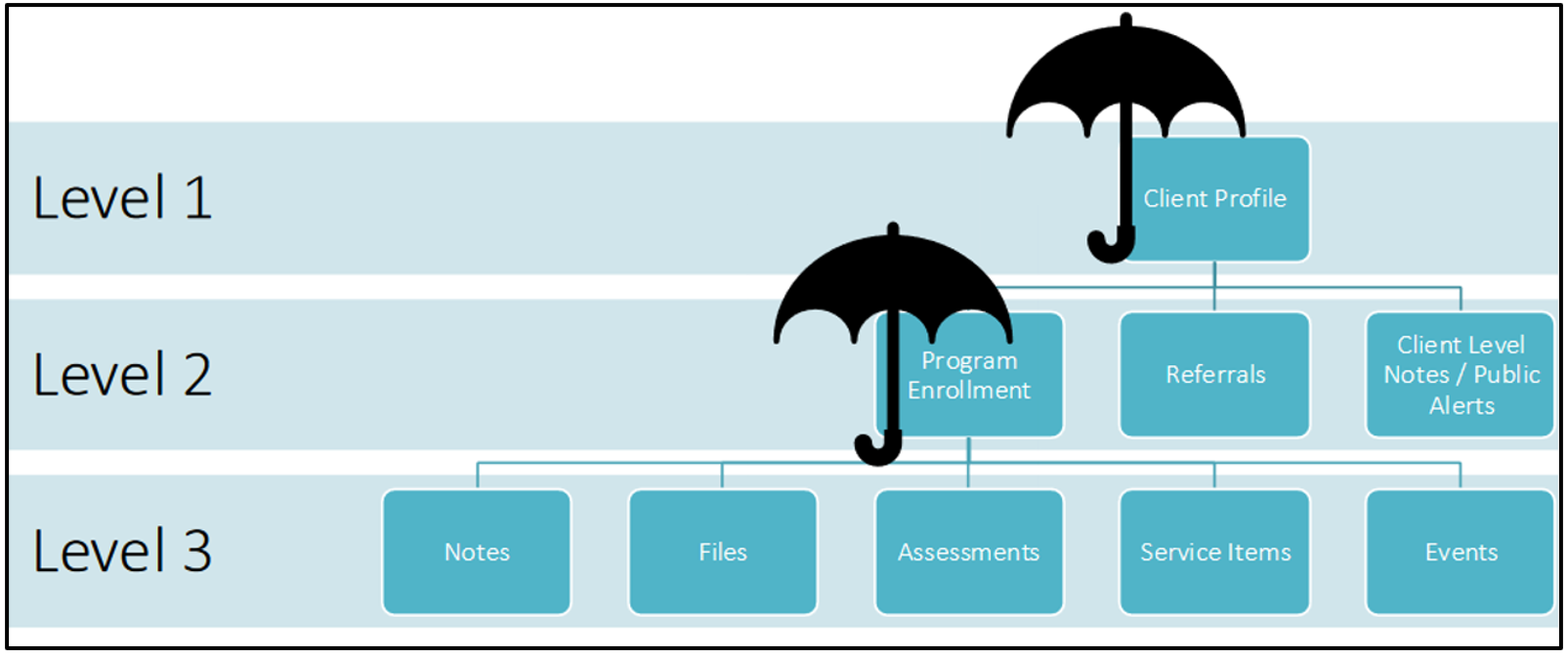
Level 1: This method requires setting the entire client record to private in Clarity.
- It is used when a new client chooses not to sign the HMIS Privacy Notice and Client Consent Form.
- This method cannot be used for client records that have been shared previously. In these cases, the level 2 method of making the program enrollment(s) private is recommended.
- In some cases, such as with Caracole's clients, a second client record can be created and set to private.
Level 2: Level 2 methods involve setting client-level data to private but allowing basic client information (available from the Clarity Profile screen) to be shared. Use these methods when:
- Clients whose information has already been shared refuse to sign the HMIS Privacy Notice and Client Consent Form. Setting program enrollment screens to private ensures all program-related data are kept private.
- Clients whose data is imported from Vesta: Setting the program enrollment record to private is the only method for making Vesta imported records private.
- Enrollments should also be set to private at the client's request.
- Client-level referral information should be set to private when:
- A client requests the data not be shared or set to private.
- The referral or the referral note contains sensitive details related to legal issues, substance use, domestic violence, or health (physical or mental).
- The referral or the referral note references Caracole or the YWCA
Level 3: Methods provided in level 3 privacy settings allow specific data elements entered within a program enrollment to be set to private. For example, individual services, notes, assessments, events, and files entered at the program level can be set to private.
How to Set Client Data to Private
Level 1 - Set the Entire Client Record to Private
To set a client profile to private, first navigate to their profile screen; either by searching for them in the search bar, or by creating a record if they are not already within the Clarity database.
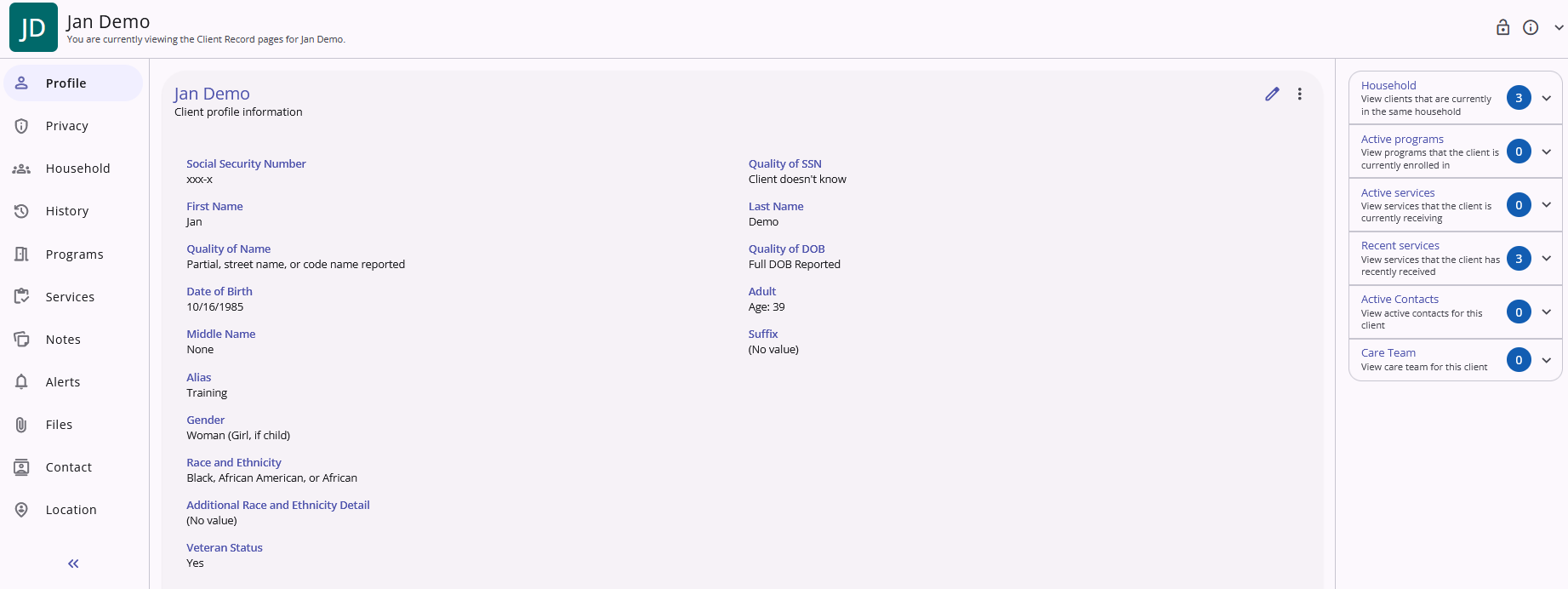
Once there, click on the open padlock icon located in the upper-right of the screen:
This will open a small window asking if you want to change the the privacy to private. Simply click "confirm" to lock the account to private.
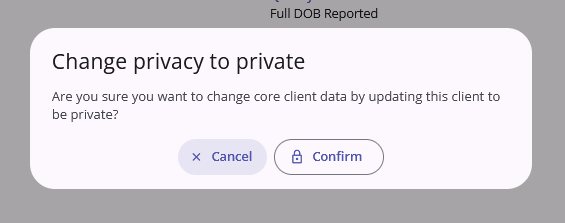
The padlock icon will change to a locked position to indicate the new privacy setting. You can also hover your mouse over the icon and the system will say if the profile is currently public or private.

You may find that you cannot set an existing public client record to private. This means that the client's record has previously been shared, and multiple agencies have contributed to the record
--
If a client requests that their data not be shared, but you are unable to set the record to private, you can either
- Set the program enrollments to private within the shared record.
- Create a new, separate client record and set it to private.
Level 2 - Set Program Data to Private
To set a program enrollment to private:
- Navigate to the desired enrollment.
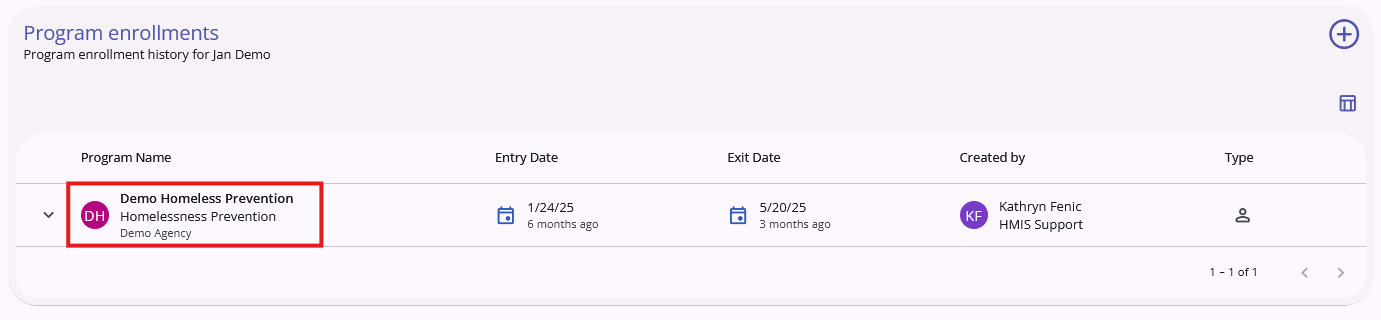
- Click on the open padlock icon next to the program name.
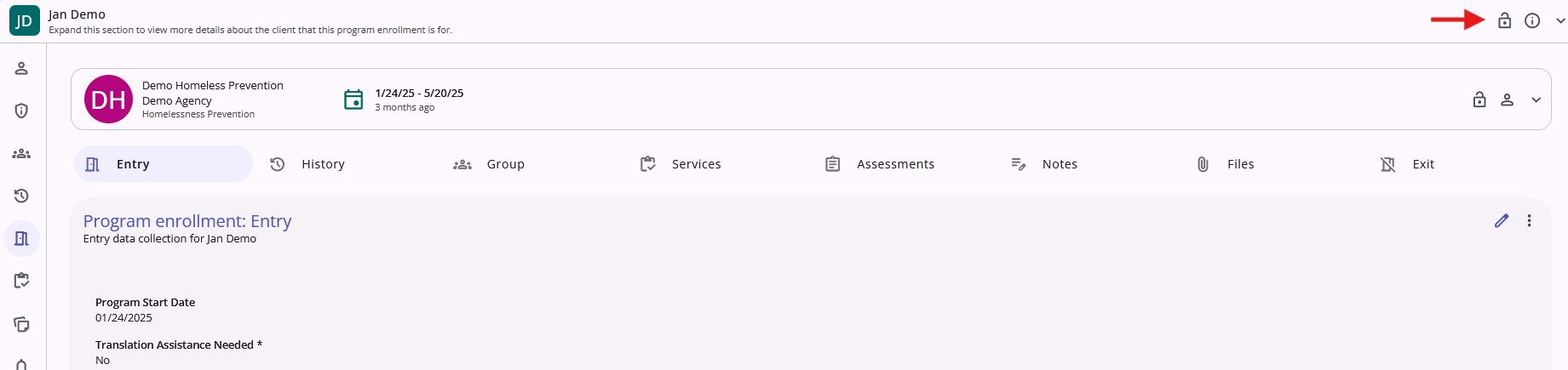
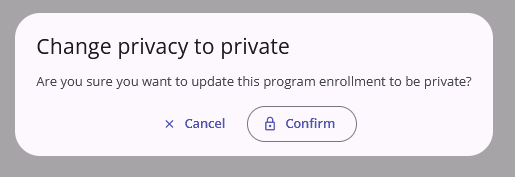
- Select "confirm."
Level 3 - Set Specific Program-Level Data to Private
- Click into the desired program from the client's "Programs" tab.
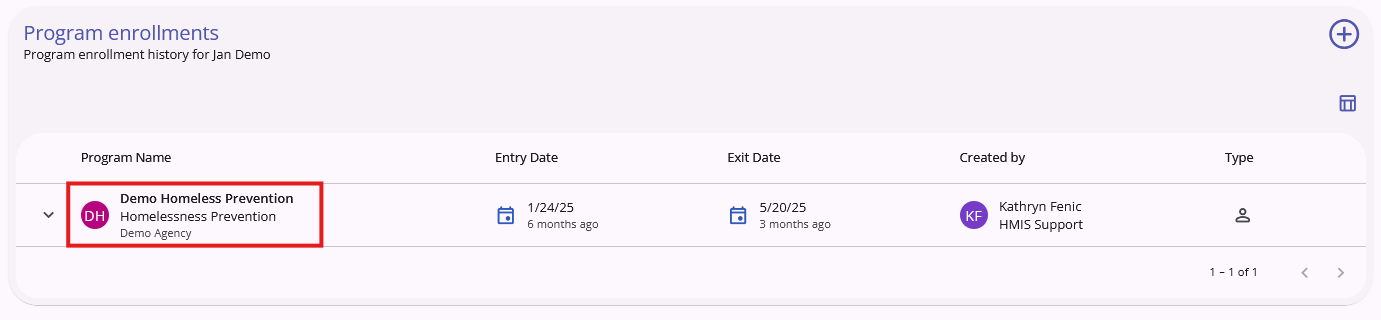
- Navigate to the tab of the item you wish to private.
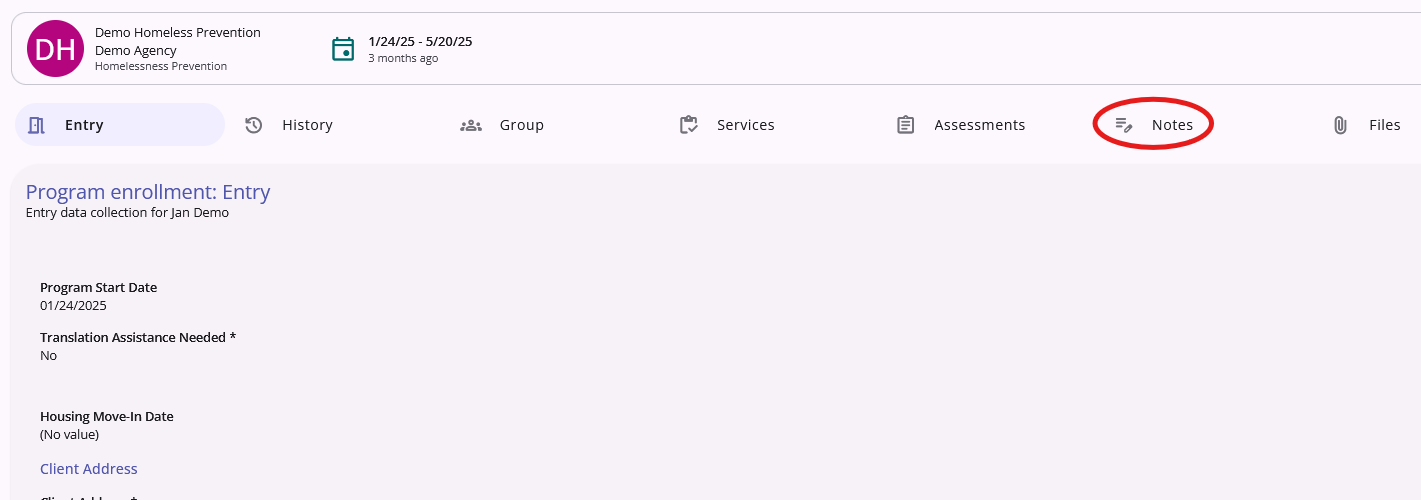
- Click on the desired item.
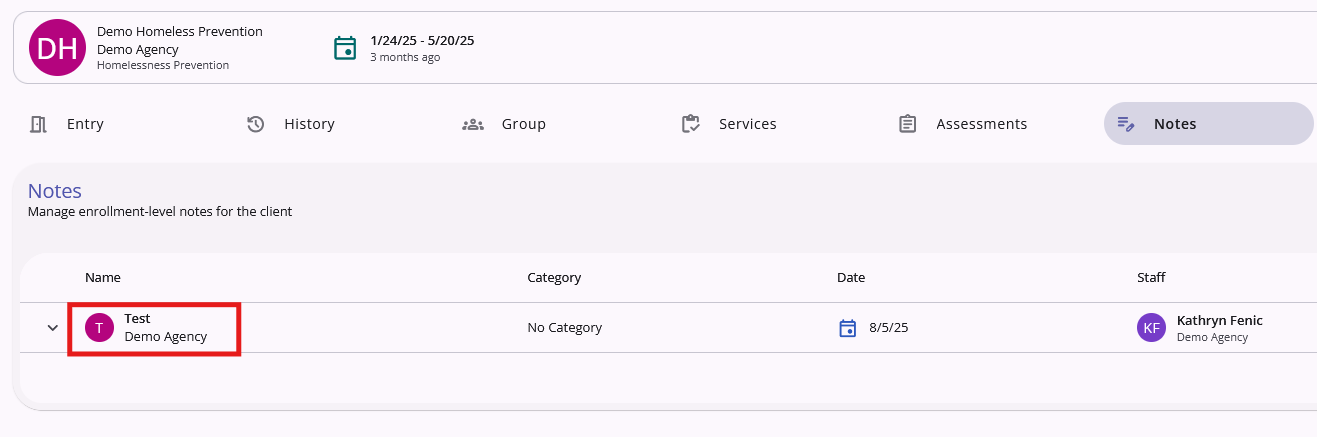
- Select the "edit" icon represented by a pencil.
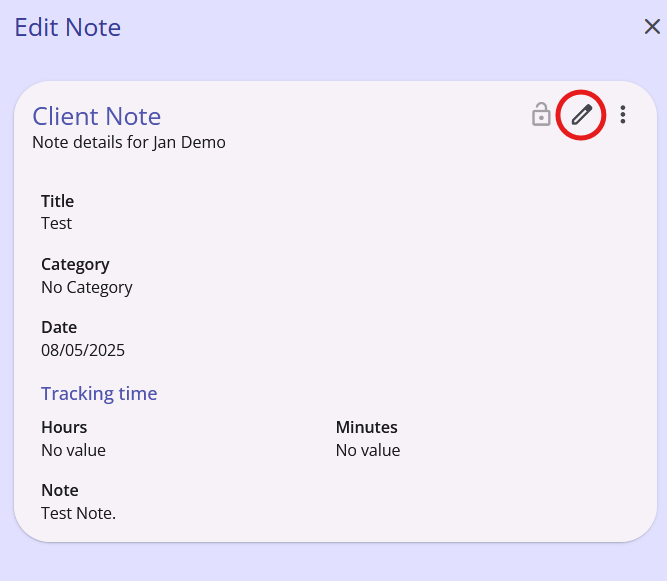
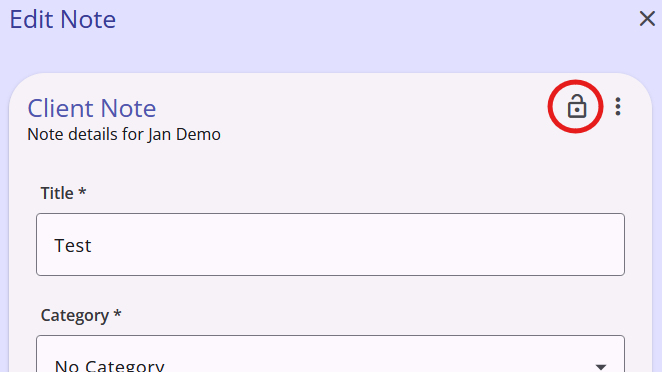
- Click on the padlock icon.
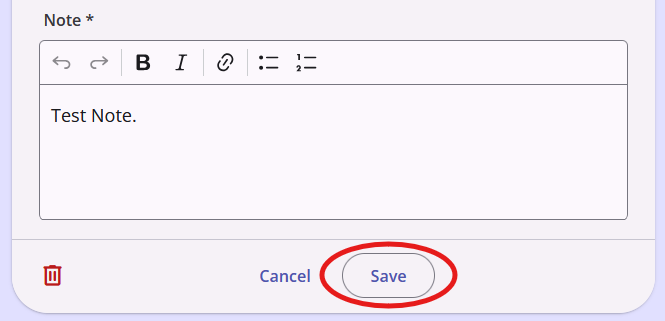
- Click "Save."
Contact Us
If you need help, or wish to offer suggestions or feedback, please contact the Cincinnati/Hamilton County HMIS support team at HMISsupport@end-homelessness.org or by calling 513-263-2790 9:00a.m. - 3:00p.m. Monday-Friday (excluding holidays).
When contacting HMIS Support about a particular client, please do not send protected personal information (PPI) such as full name, social security number, or any other information used to determine a person's identity through email. Instead, please send the Clarity Unique Identifier found on the client's Clarity Profile page. You can use the messaging system in Clarity if you need to send personally-identifying information.