
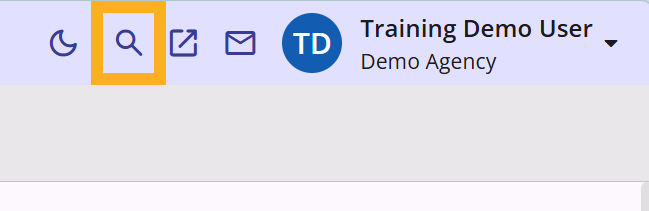
There are two ways to navigate to the client search screen or to search for a client:
| The magnifying glass located in the top right of the screen. | Selecting the Bitfocus logo (check-mark) or the client search icon will direct users back to the "home" client search screen. |
 An overlay will appear allowing users to search for client: An overlay will appear allowing users to search for client: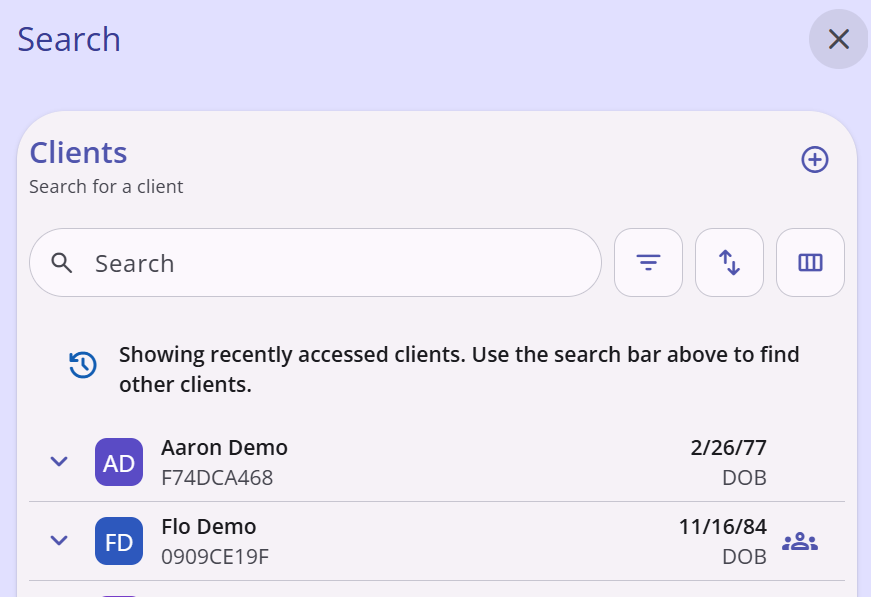 | 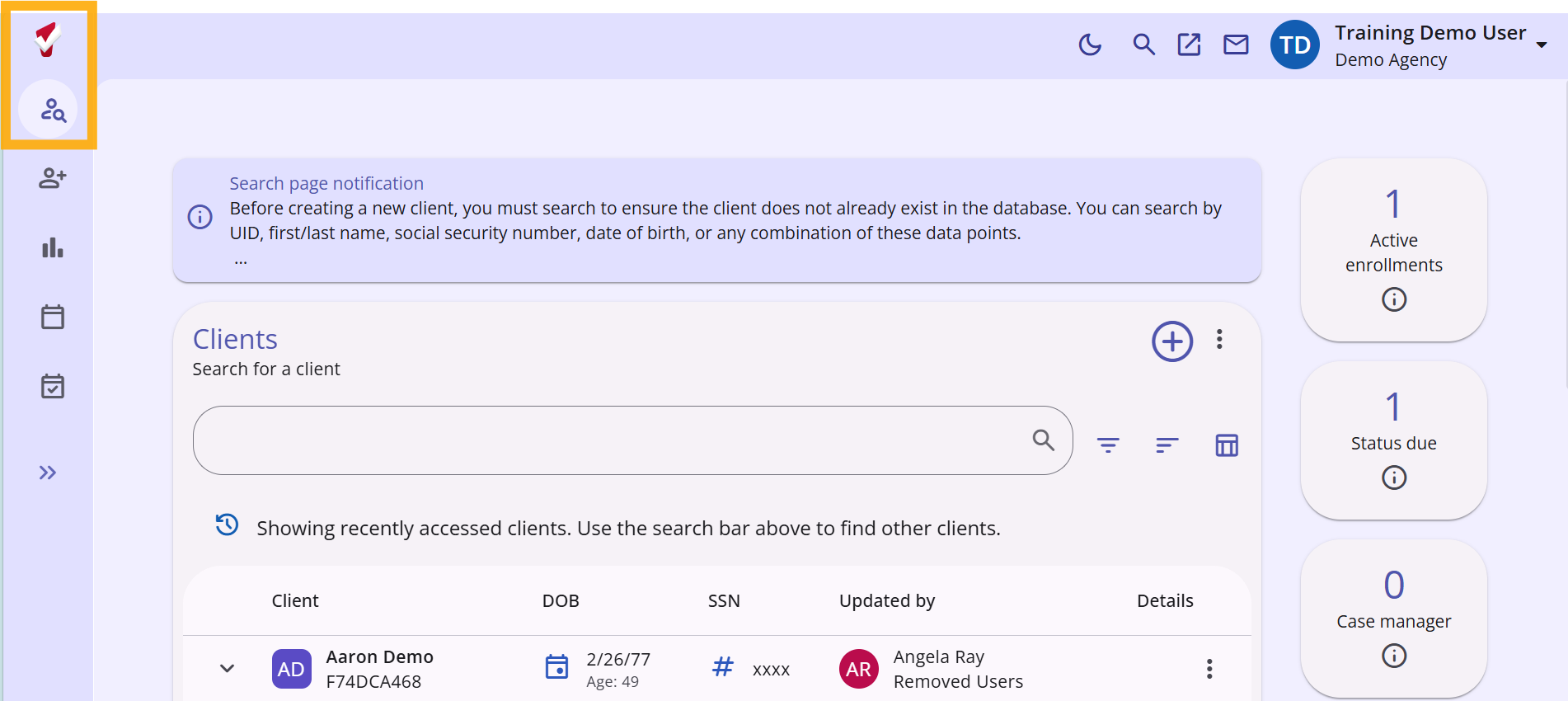 |
On either client search option, you will see a search bar, as well as a list of the last searched for client profiles.
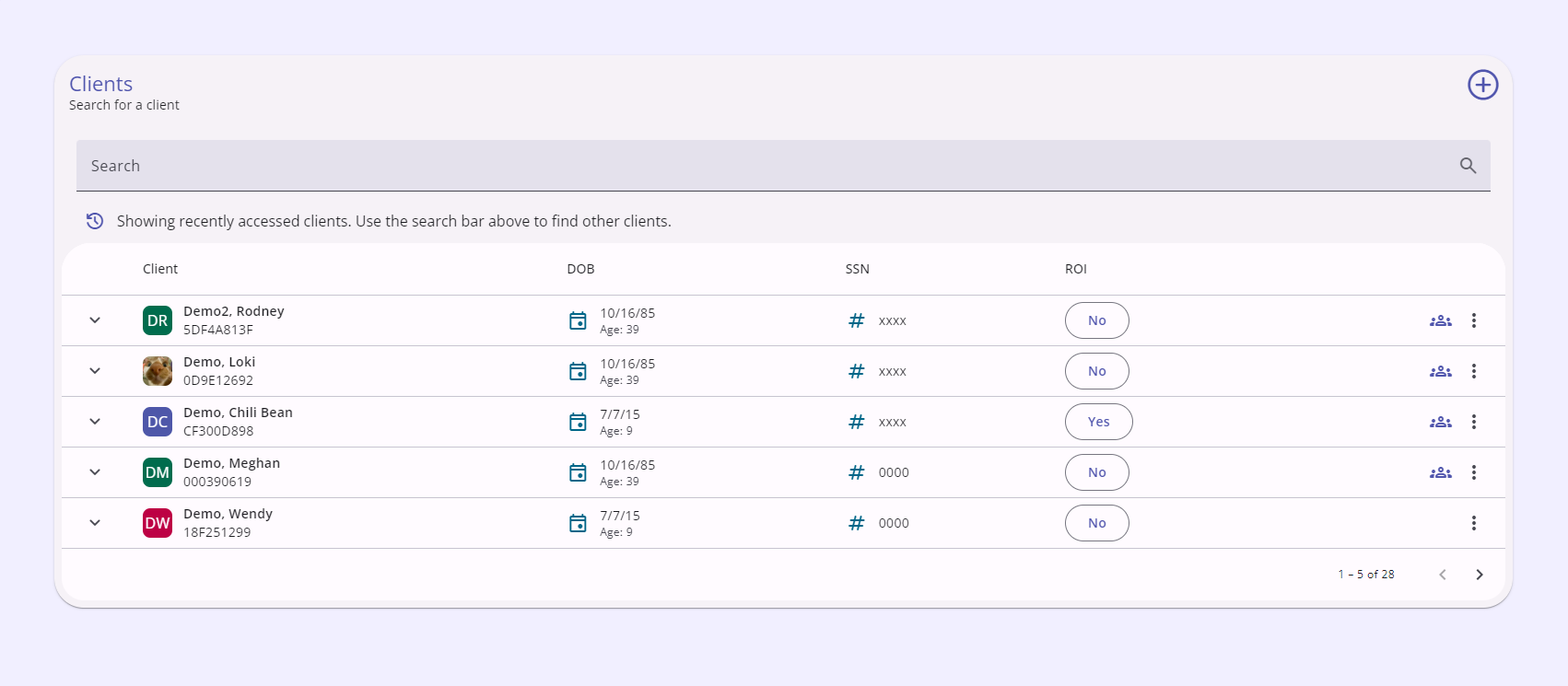
Clients can be searched for with any of the following information:
- First and last name
- Unique Identifier
- Alias
- Social Security Number
- Full or last four digits
- Date of Birth
- mm/dd/yyyy
It is essential to search for a client using different search information to ensure that an existing record does not already exist. In case a duplicate record is created, please send an email to HMISsupport@end-homelessness.org with the two unique identifiers.
Search Filters
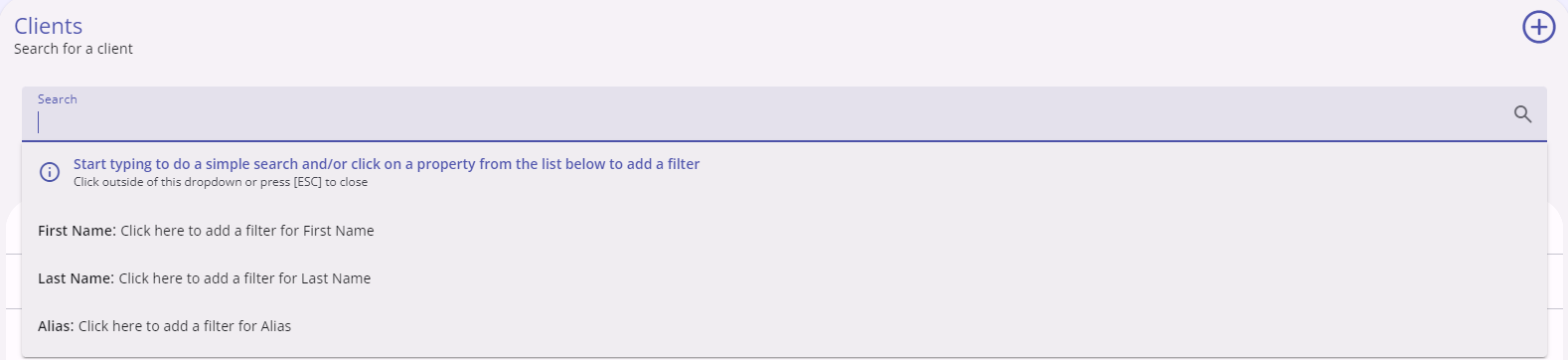
This interface offers additional filters by clicking on the desired option from the dropdown menu that opens when using the search bar.
Once you have typed in some form of identifying info, a list of client profiles matching the entered information will appear.
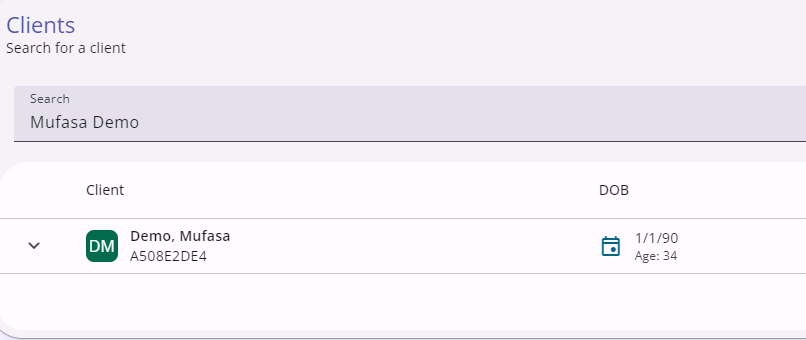
Use the additional information on this screen, the Date of Birth and the last four digits of the SSN, to confirm that the profile does indeed belong to the client you searched for.
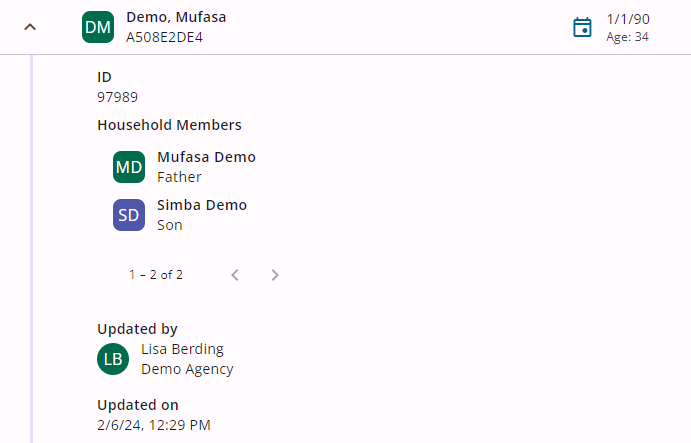
Click on the downward facing arrow to the left of the client profile picture to view additional information about the profile. Such as Household members, who last updated the information, and when the update took place.
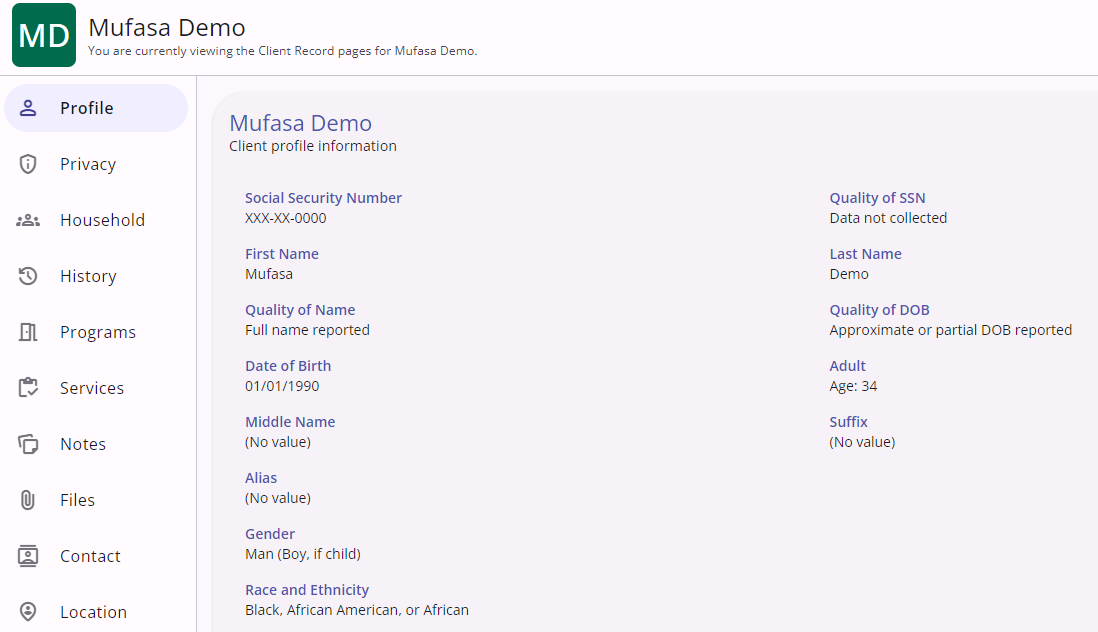
Click anywhere inside the box containing your client's data to be taken into their profile.
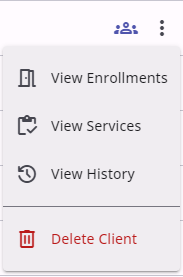
Alternatively, you can click on the vertical three-dot icon on the far right of their search result to go directly to certain parts of their profile.

For more information, click the link to see the Bitfocus article on searching for a client in the new UI.
Contact Us
If you need help, or wish to offer suggestions or feedback, please contact the Cincinnati/Hamilton County HMIS support team at HMISsupport@end-homelessness.org or by calling 513-263-2790 9:00a.m. - 3:00p.m. Monday-Friday (excluding holidays).
When contacting HMIS Support about a particular client, please do not send protected personal information (PPI) such as full name, social security number, or any other information used to determine a person's identity through email. Instead, please send the Clarity Unique Identifier found on the client's Clarity Profile page. You can use the messaging system in Clarity if you need to send personally-identifying information.