
To exit a client from a program, go to the Programs tab and click the name program name.
Click the “Exit” tab on the far right of the program level navigation tabs. You may have to scroll to the right.
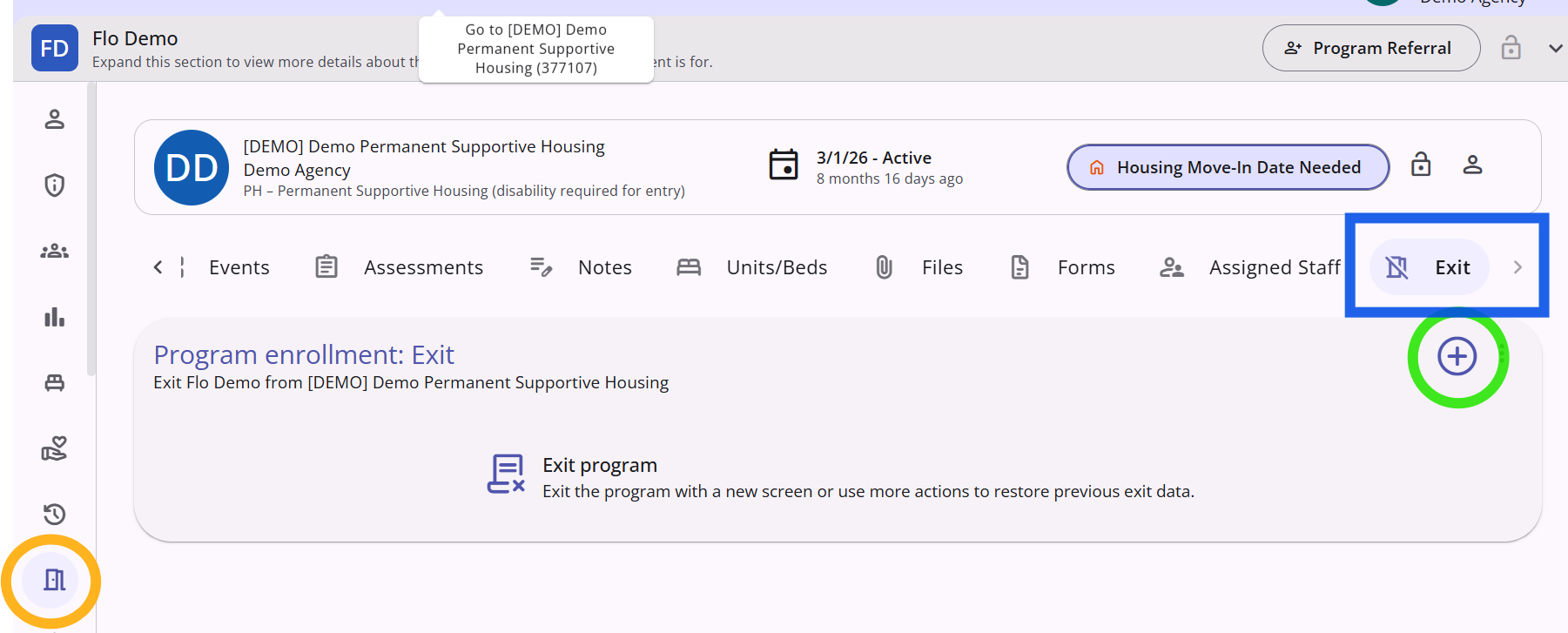
Select the Add (+) icon to initiate an exit.
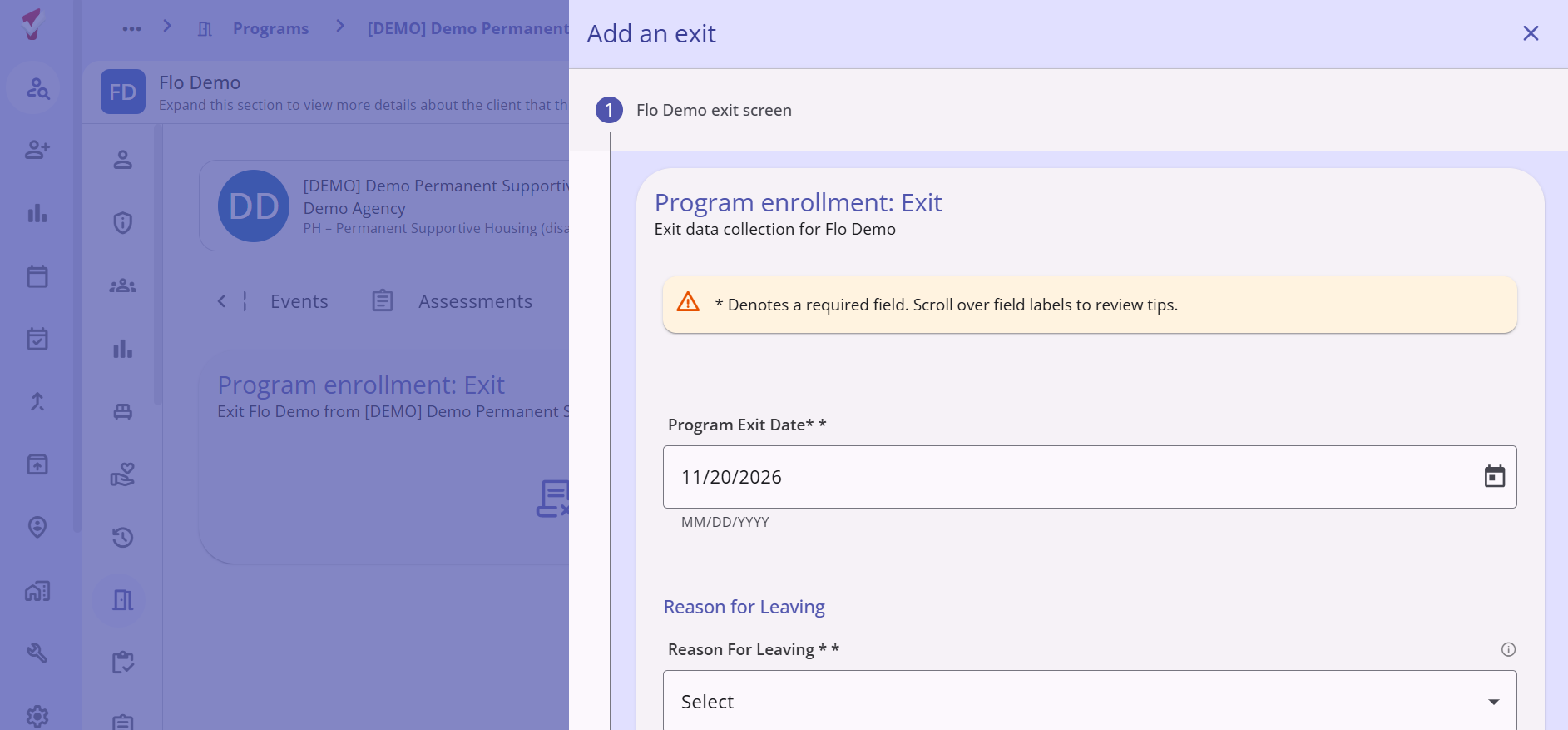
If working with a household, toggle on additional household members to also exit from the program, if applicable.
Select the appropriate answers from the drop-down fields. Please note, the most recent data entered in the enrollment/status update/annual assessment screens will cascade into the exit. Confirm the data is still accurate or update the exit with the correct information.
- Program Exit Date
- Reason for Leaving
- Reason for Leaving (comments)
- Exit Destination
- Disabling Conditions and Barriers
- Health and Wellness
- Employment
Monthly Income and Sources - Non-Cash Benefits
Click 'Save and Next' and then "Complete." If exiting more than one person, click 'Save and Next'. (Clarity will walk you through the exit for each household member you toggled on in the previous step.)
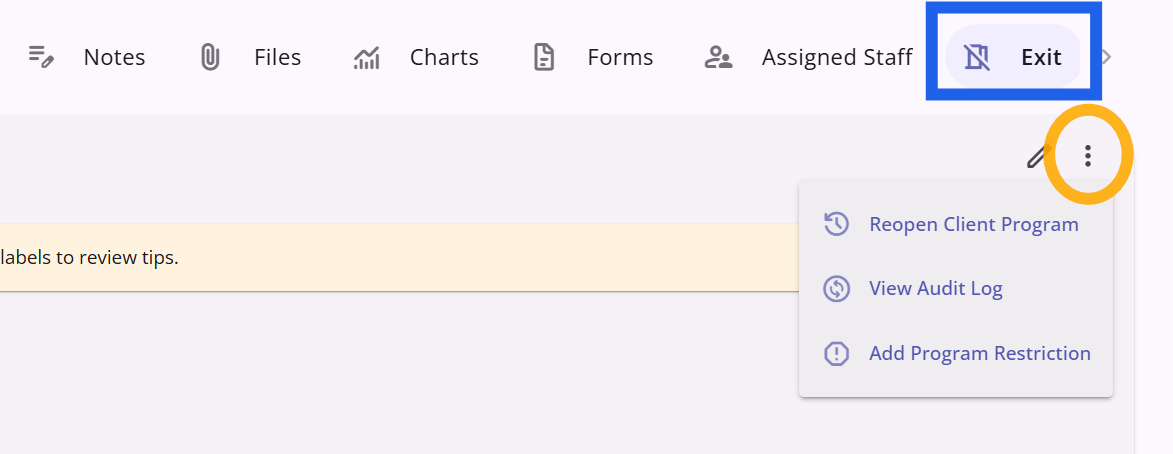
To reverse a program exit, on the enrollment "Exit" tab, select the three vertical dots. Select "Reopen Client Program."
Contact Us
If you need help, or wish to offer suggestions or feedback, please contact the Cincinnati/Hamilton County HMIS support team at HMISsupport@end-homelessness.org or by calling 513-263-2790 9:00am - 3:00pm Monday-Friday (excluding holidays).
When contacting HMIS Support about a particular client, please do not send sensitive personally identifiable information (Sensitive PII) through email, such as full name, social security number, or any other information used to determine a person's identification. Instead, please send the Clarity Unique Identifier found on the client's Clarity Profile page. You can use the messaging system in Clarity if you need to send sensitive personally identifying information.