
| This article showcases how to exit clients from program enrollments within the new Clarity UI. For questions regarding program exits in the old UI, please check out this article: Exiting a Client From a Program Please note that this user interface is still in beta and is continuously being updated and revised. Please contact HMISsupport@end-homelessness.org if you have any questions or believe something in this article to be outdated. |
To exit an individual or a household from a program enrollment, first navigate to the desired client's profile and click on their Programs tab. If you are wanting to exit a household, navigate to the Programs tab of the Head of Household (HoH).
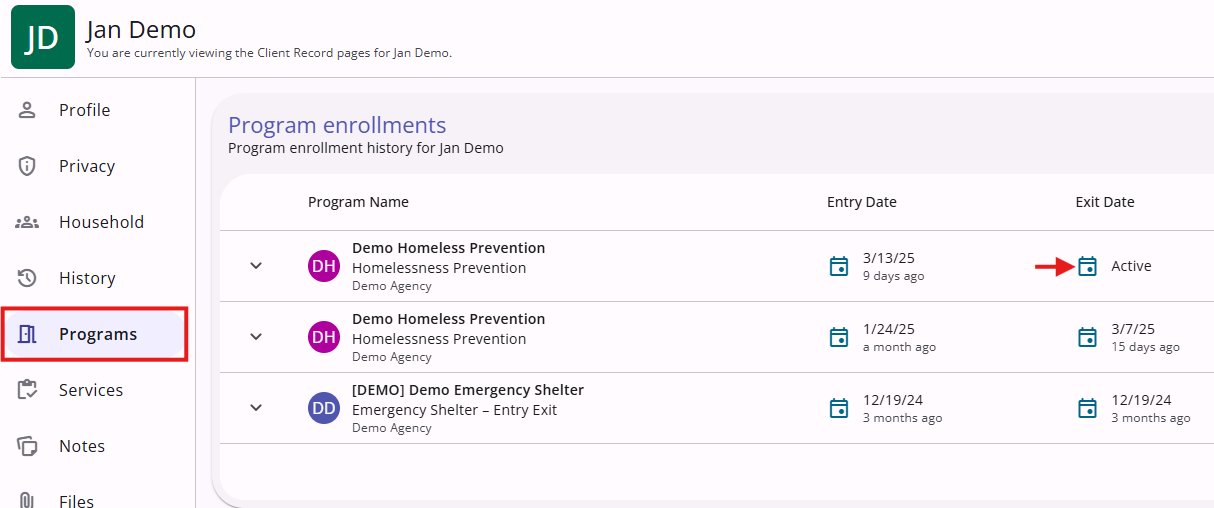
The Programs tab has a list of all program enrollments the client is a part of, both past and present. As denoted in the above screenshot with a red arrow, a presently active enrollment will have the word "active" under the exit date. Click on the name of the active program enrollment to enter the program-level navigation.
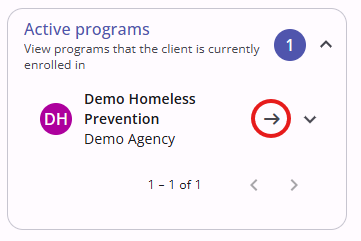
Alternatively, you can also reach the program-level navigation for the program enrollment you will be exiting clients from by clicking on the "Active programs" drop down on the right-hand side of the client's profile page. Simply click on the arrow icon to be taken straight there.

Once inside the program-level navigation of the desired program enrollment, click on the Exit tab at the far right of the navigation toolbar denoted by an icon of a door with a slash mark through it.

This section will not show any results yet, as the client has not exited the enrollment. To add exit data and complete a program exit, click on the + icon on the right side of the screen, shown with a red arrow in the above screenshot. This will open the overlay that will walk you through the exit process.
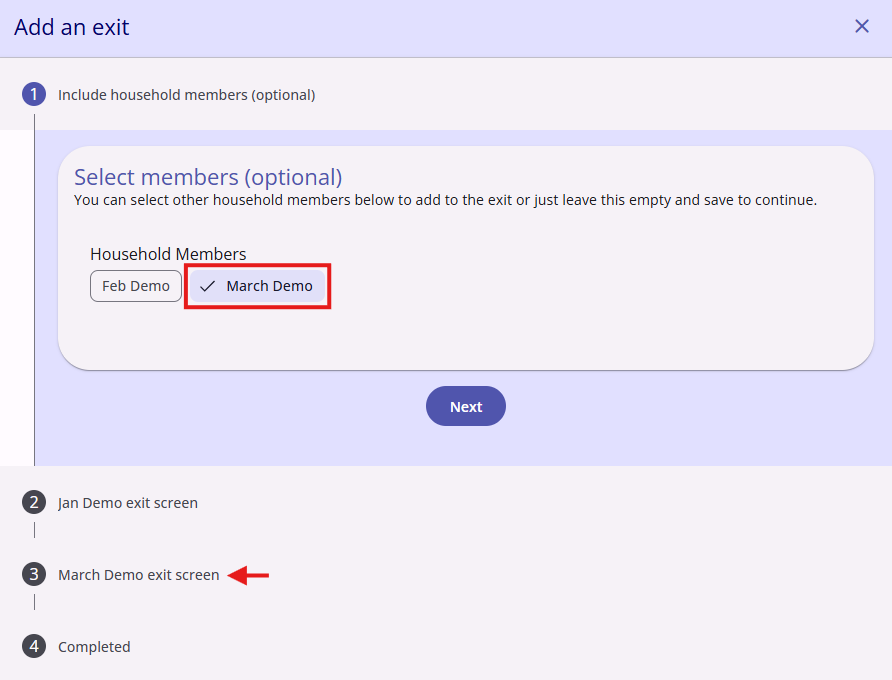
The first step is to select which household members, if any, will be exiting the enrollment alongside the client chosen to exit the enrollment. Clicking on a household member's name highlights them and adds an extra step to the exit process as each member exiting will need to have their own exit data filled out. If no other household members are leaving the enrollment, you can continue on without highlighting any of their names. Select Next to continue.
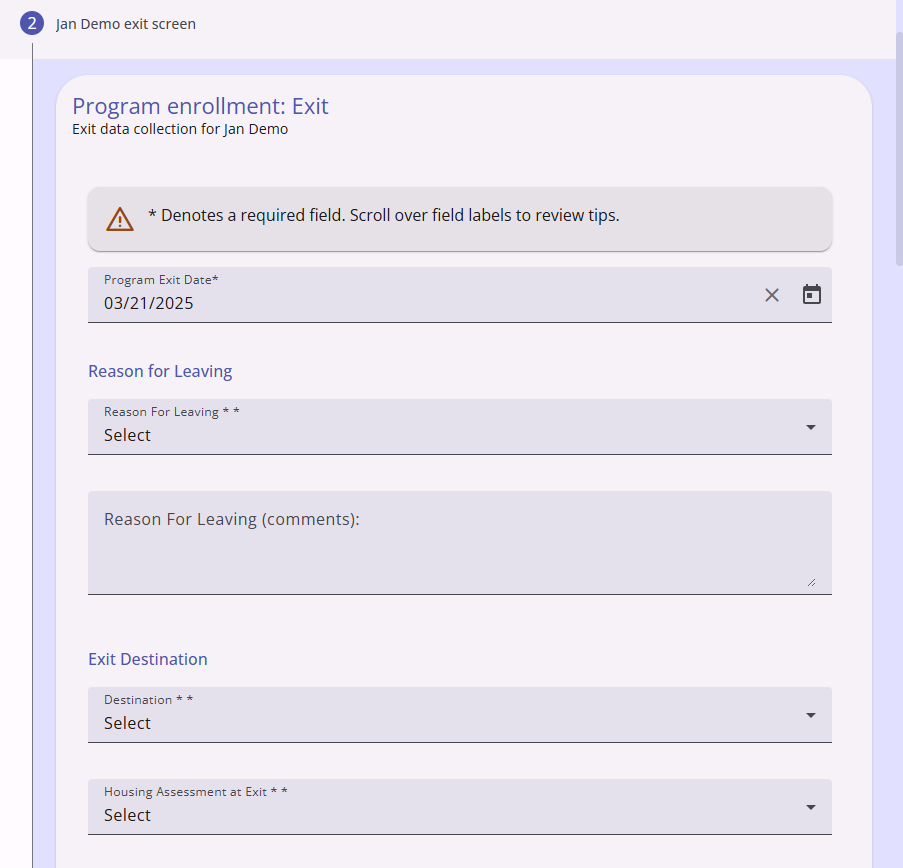
The biggest, most important part of enrollment exiting is collecting the required exit data. You will need to document why the client or clients in question are leaving the program, and where they are going once they exit it. The three major fields, all of which are required to be filled out as they are marked with asterisks, are Reason for Leaving, Destination, and Housing Assessment at Exit. These are all filled out with a selection from a dropdown menu. There is also a comments section for the reason for leaving for any additional information relevant to the exit.
Reason for Leaving is where you document why the client is leaving the program. The dropdown allows you to select from a myriad of reasons such as:
- Left for a housing opportunity before completing program
- Completed program
- Non-compliance with program
- Death
- Unknown/disappeared
Destination is where you document where the client is going after they are exited from the program. The dropdown allows you to select from even more options than the Reason for Leaving menu, including:
- Place not meant for human habitation
- Safe haven
- Staying or living with family
- Psychiatric hospital
- Deceased
The accuracy of this data is extremely important to measure the success of programs and projects in our community to most efficiently provide help to those that need it.
Housing Assessment at Exit is where you conclude the status of the client's homelessness situation after exiting the program. The dropdown choices are:
- Able to maintain housing they had at project entry
- Moved to new housing unit
- Moved in with family/friends
- Moved to a transitional or temporary housing facility or program
- Client became homeless
- Jail/prison
- Deceased
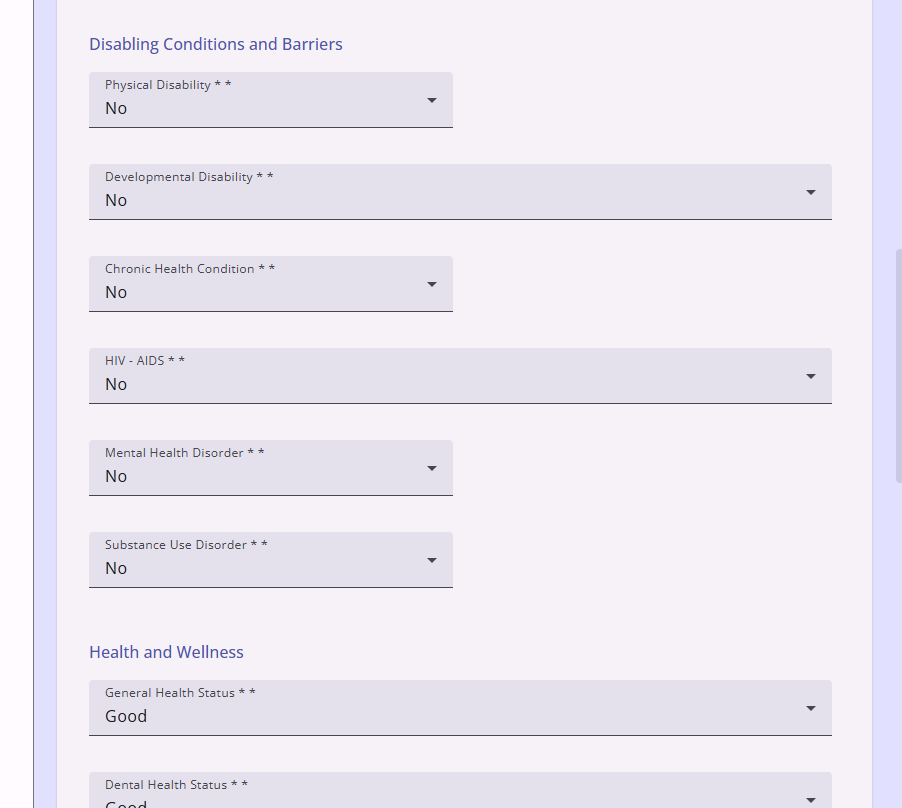
After filling in the program exit specific data, it will ask for information about disabilities, general health, and employment questions that is also asked during client intake. If these questions have been answered elsewhere before, they will automatically be cascaded in here.
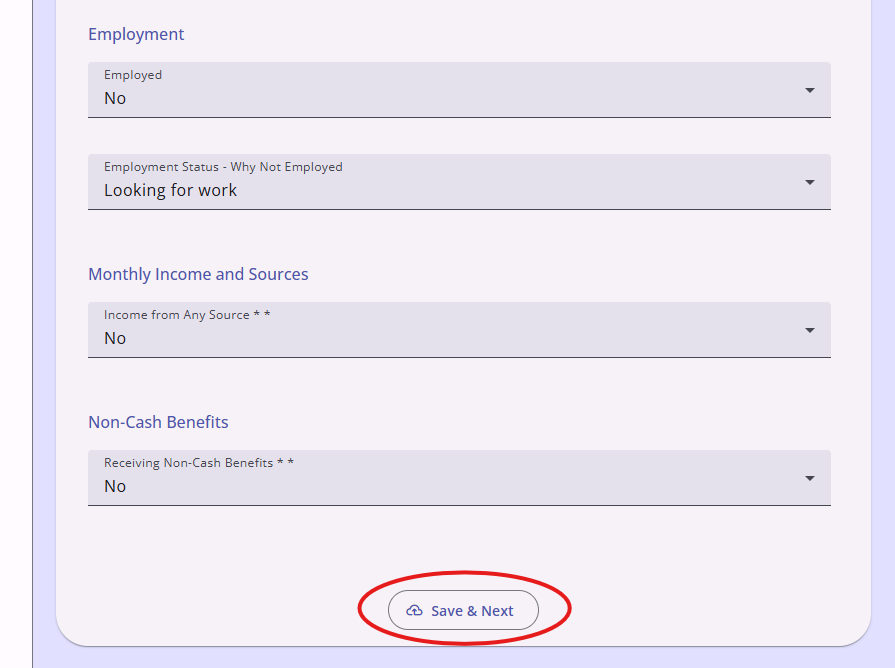
Scroll through carefully to make sure that all information in these sections is accurate, and then click Save & Next. If there are any other household members being exited at this time, this step will repeat once each for all of them.
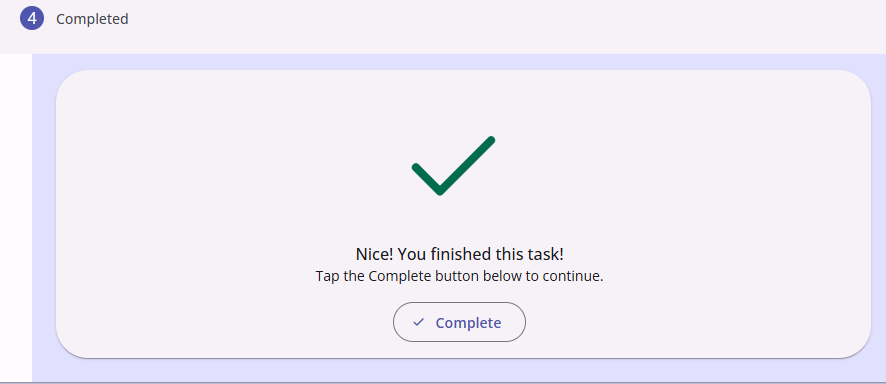
After filling out the exit data for all the included clients, the screenshot above is the final step of the exit process, simply letting you know that the process is successfully finished, and you are free to continue. Clicking Complete closes the overlay.
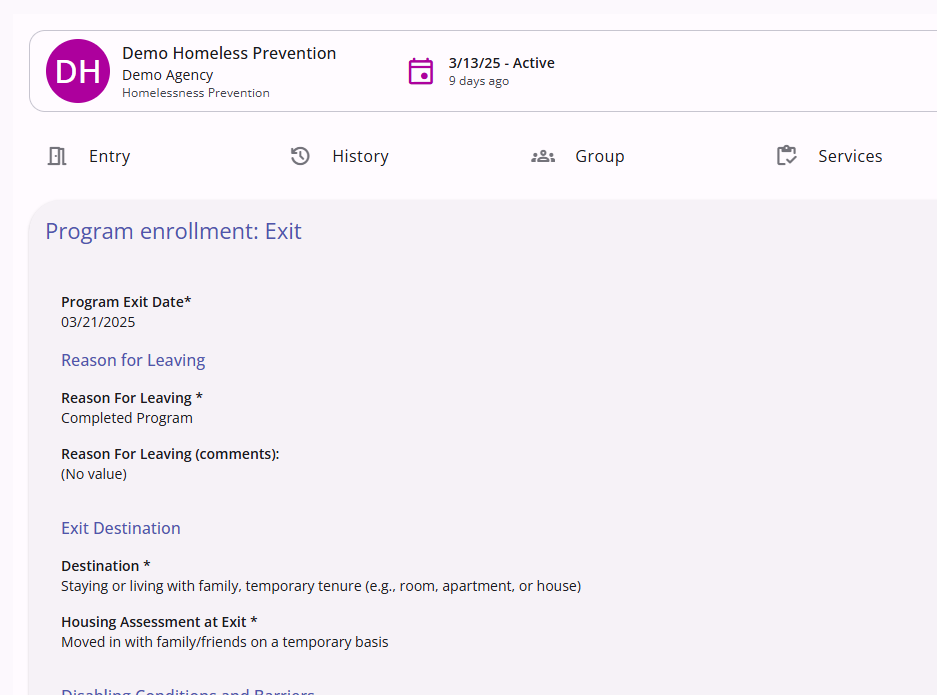
The client's exit data will now show in the Exit tab of the program-level navigation for the selected program enrollment, and the program enrollment will be removed from the client's "Active programs" quick select on their profile page.
For more information on program exits, check out this article from Bitfocus.
Contact Us
If you need help, or wish to offer suggestions or feedback, please contact the Cincinnati/Hamilton County HMIS support team at HMISsupport@end-homelessness.org or by calling 513-263-2790 9:00a.m. - 3:00p.m. Monday-Friday (excluding holidays).
When contacting HMIS Support about a particular client, please do not send protected personal information (PPI) such as full name, social security number, or any other information used to determine a person's identity through email. Instead, please send the Clarity Unique Identifier found on the client's Clarity Profile page. You can use the messaging system in Clarity if you need to send personally-identifying information.