
To enroll an individual client into a program in the new UI, first navigate to their profile page. If you need help searching for your client, check out this article first.
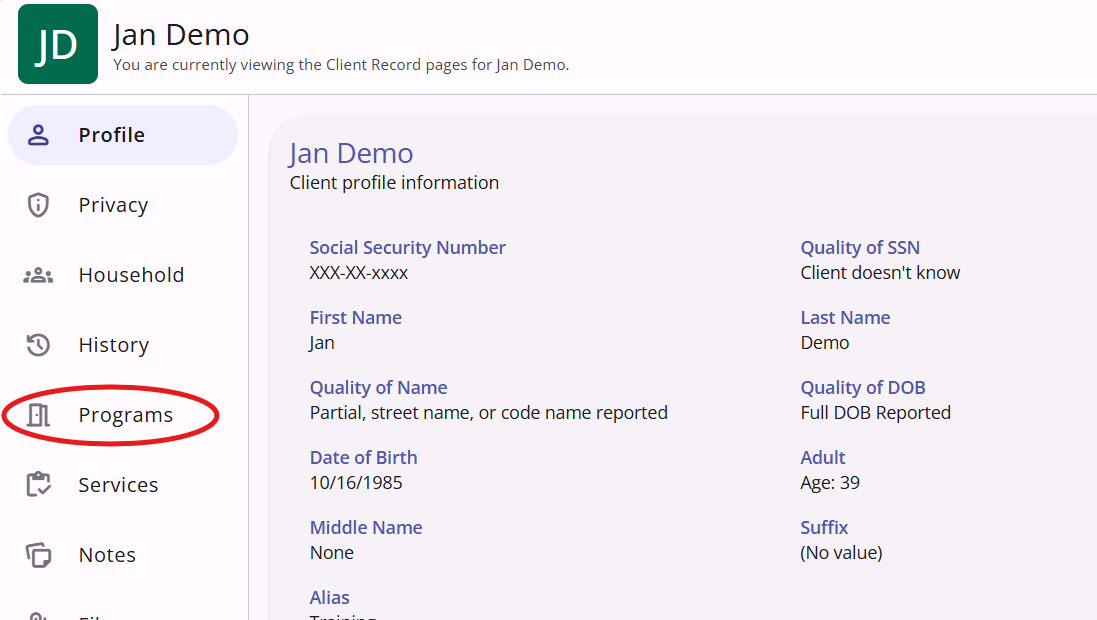
Once you have gotten to the profile page of the desired client, click on the Programs button denoted by an icon of an opening door.
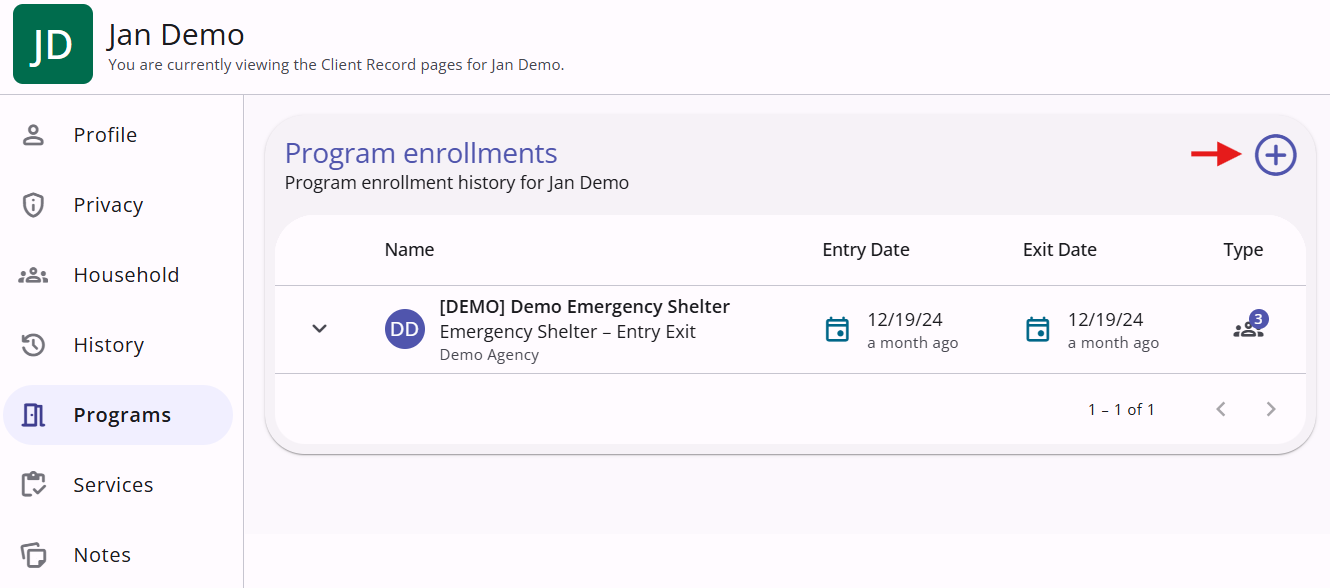
Here you will see the enrollment history of the client. You can click the down arrow to the right of an enrollment to see more information about it, but the name of the program, the entry and exit dates, and the type of enrollment will always be visible. To add a new enrollment, click on the + icon in the top right corner of the enrollment history. This will open an overlay with four steps to complete.
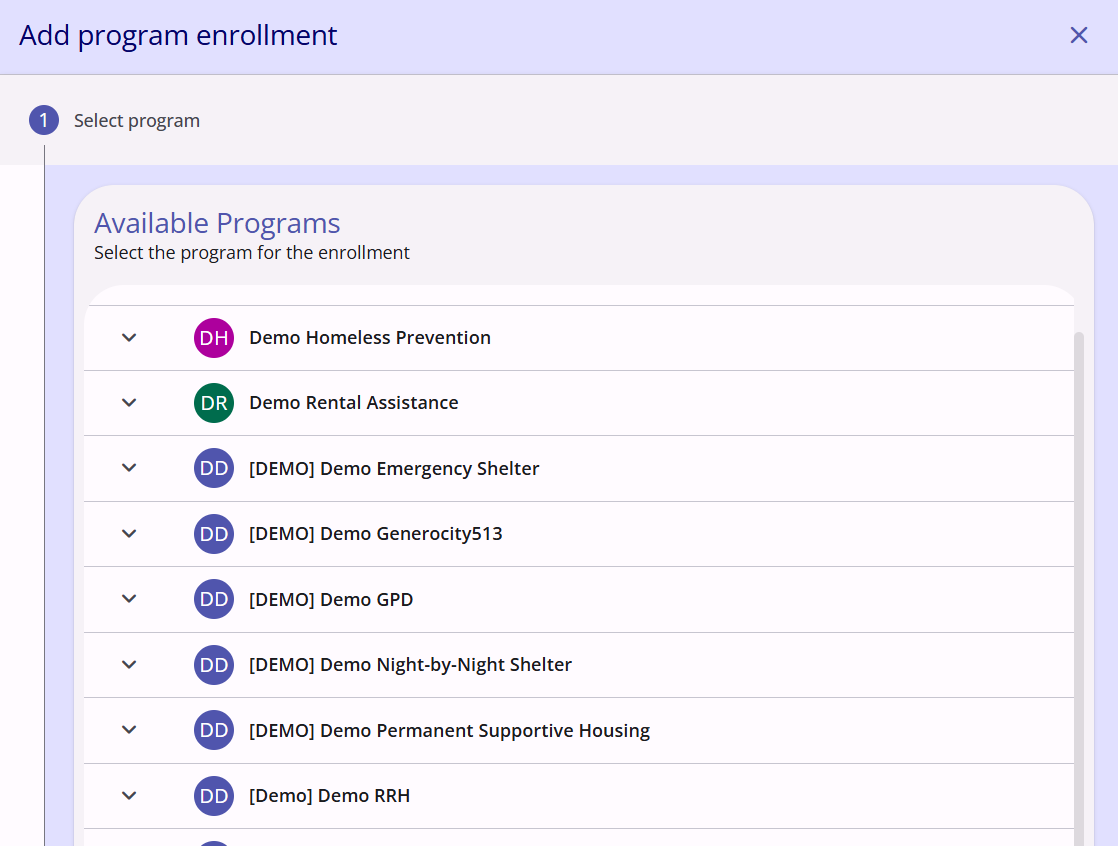
The first step is to choose a program from the list of programs available. The number of programs available will vary depending on the agency. Click on the name of the program you want to enroll the client in to highlight it.
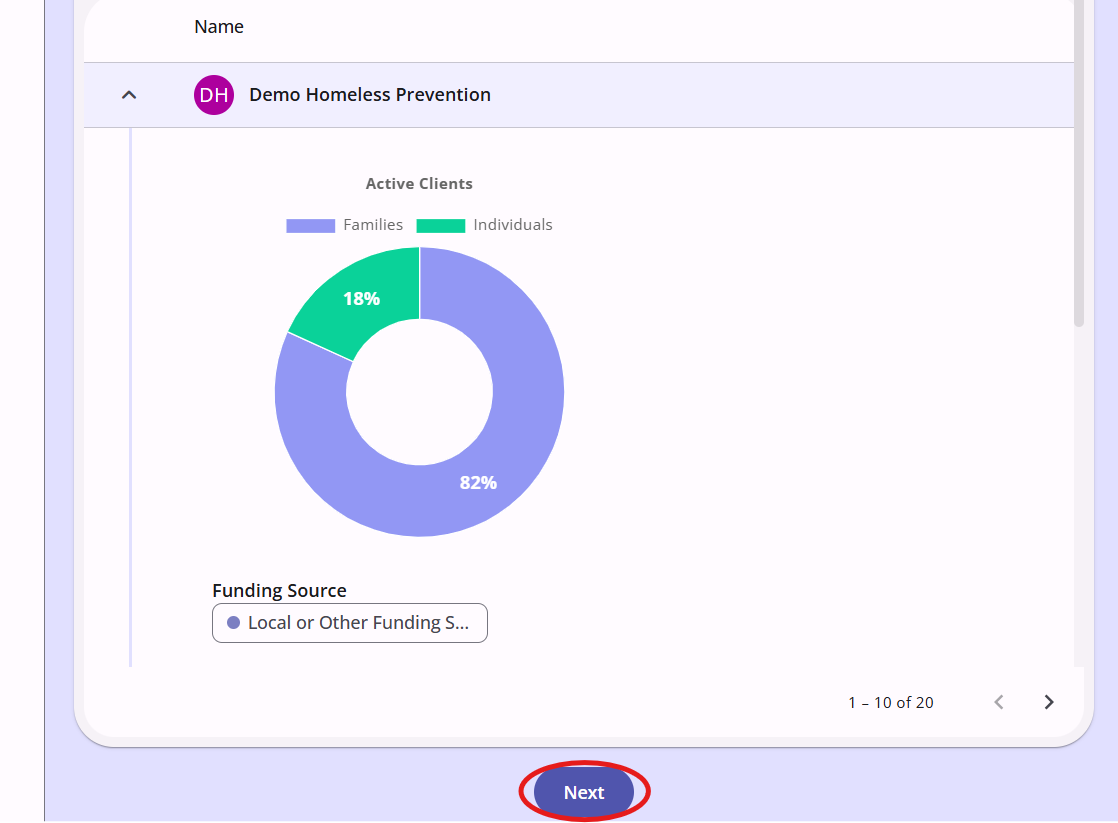
Clicking on the down arrow to the right of the program name will give you more information about it. Once you have clicked on the program you want to enroll the client in, scroll down and click on the dark blue Next button.
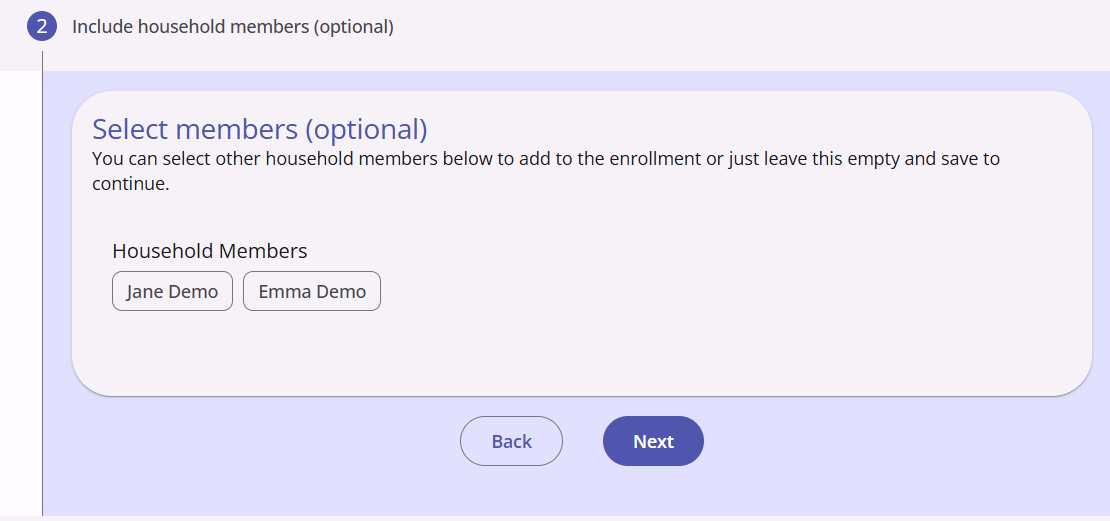
Step two is to add any household members to the enrollment alongside the chosen client. This is not a required step if you are creating an enrollment for just one individual client. Clicking on a household member's name will highlight it, adding that client to the enrollment and making the enrollment type "group." Once you have highlighted the household members, if any, click on the dark blue Next button. For this example, we will not be enrolling either of the household members.
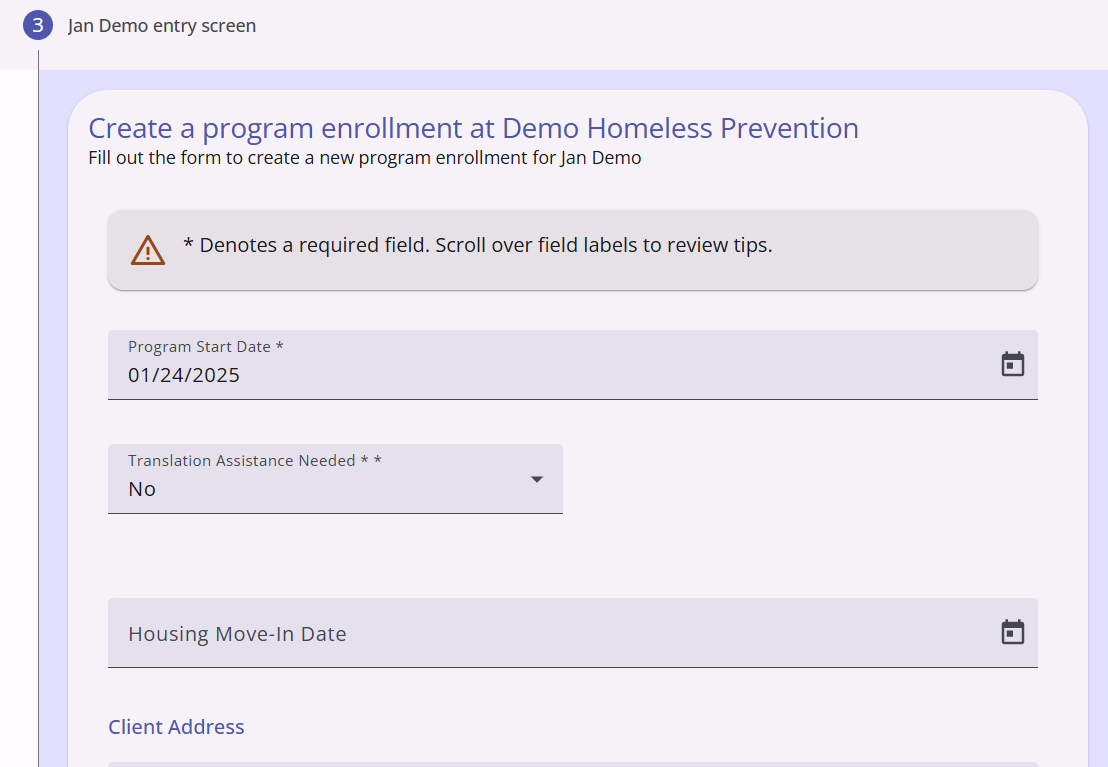
The third step is to fill out the required data about the client to create their enrollment. Some of this information will cascade from the client profile creation data and will not need to be reentered. Carefully scroll down this page, adding any information not present, and click on the Save & Next button at the bottom.
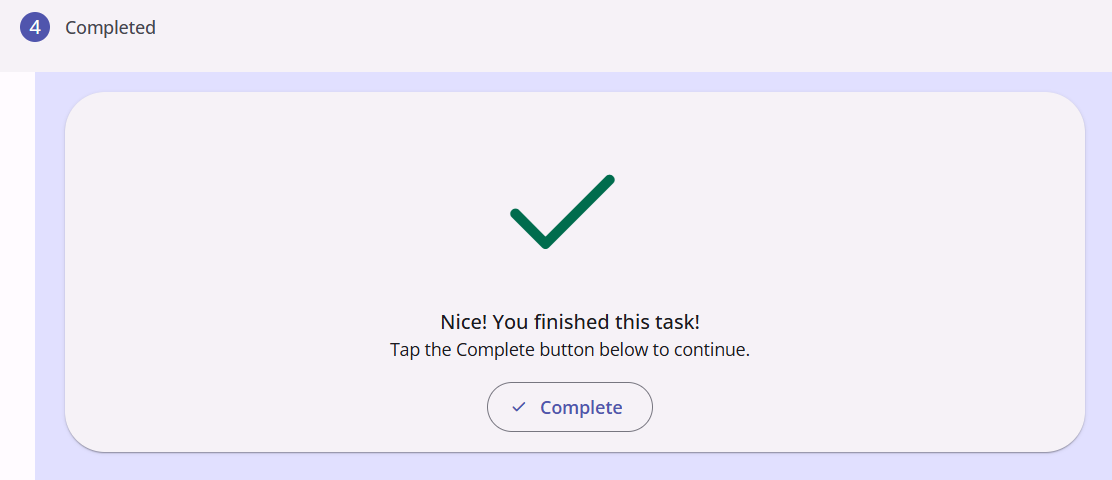
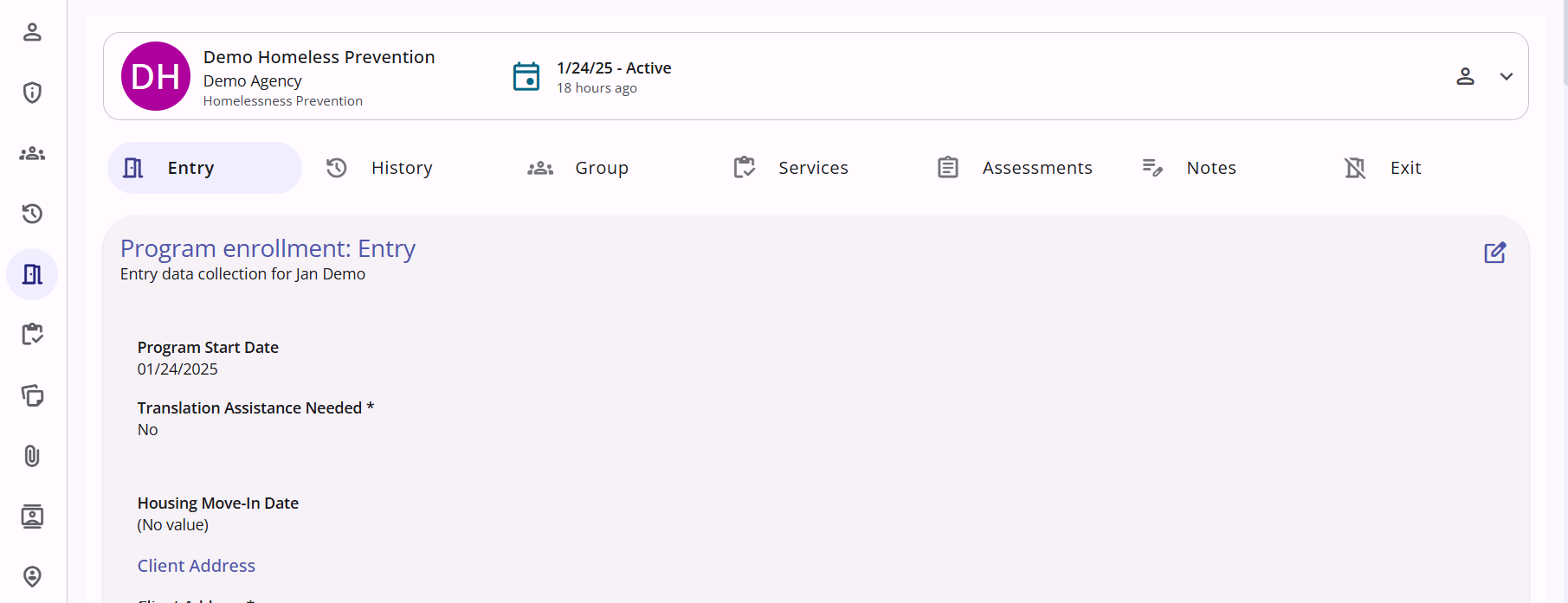
The fourth step is simply a confirmation that the process is over. Click the Complete button to successfully finish the program enrollment. After you click the button, you will be taken to the active enrollment screen for the enrollment you have created.
For more information about program enrollments in the new UI, take a look at this article from Bitfocus.
Contact Us
If you need help, or wish to offer suggestions or feedback, please contact the Cincinnati/Hamilton County HMIS support team at HMISsupport@end-homelessness.org or by calling 513-263-2790 9:00a.m. - 3:00p.m. Monday-Friday (excluding holidays).
When contacting HMIS Support about a particular client, please do not send protected personal information (PPI) such as full name, social security number, or any other information used to determine a person's identity through email. Instead, please send the Clarity Unique Identifier found on the client's Clarity Profile page. You can use the messaging system in Clarity if you need to send personally-identifying information.